Skip to content

Reesponder Actions

A conversation.
A completed task.

Help customers do what they came for. Connect your systems so Reesponder can check account information, find the right product, update a basket or complete a booking right inside the conversation.

Connected to your APIConfirmed by your customerRecorded in your system
A completed service booking, with a reference and a link to the account.
More than an answer.A result your customer can act on.

Your website explains.
Your systems know.
Actions connects them.

Your knowledge content helps Reesponder explain your business. Actions gives it a defined way to request current information or submit an operation to a connected system.

Purchase history, an account balance, delivery to a saved address and a booking reference belong to that system. An Action fetches the information when it is needed and returns an outcome the customer can see.

The marketplace walkthroughs below follow the complete journey: a question, an API-backed response, customer confirmation where a change is involved, and the result in the store.

Shopping with context

A gift voucher. A recent purchase. A better recommendation.

Your customer knows what they want to achieve. Your systems hold the details. Actions brings the two together, so a conversation can start with a simple question and end with a product in the basket.

The starting point is an existing account.

Alex has a $100 gift balance and a recent PlayStation 5 purchase. This is the information the recommendation Action will retrieve after verification. The customer does not need to repeat their order history in the chat.

“I received a gift voucher. Could you check what I bought in the last month and suggest three games that work with my console?”

Verify the customer

Purchase history belongs to an account.

The assistant selects the purchase-history Action and opens the verification form. The customer verifies their email inside the widget before private account information is requested. They do not need to know an Action name, an API endpoint or a console stock code.
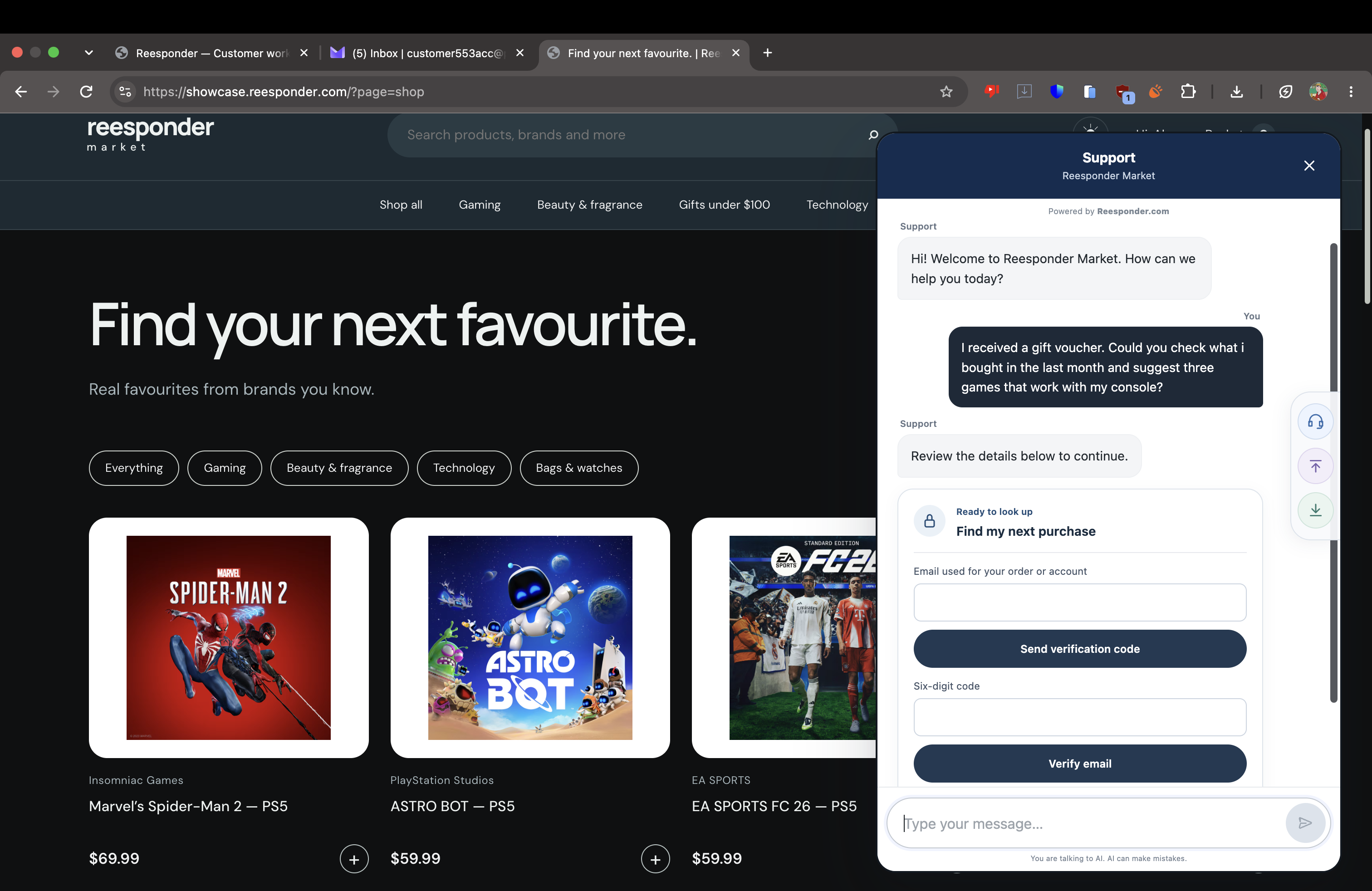
The widget asks the customer to verify their email before accessing purchase history.

Check the inbox

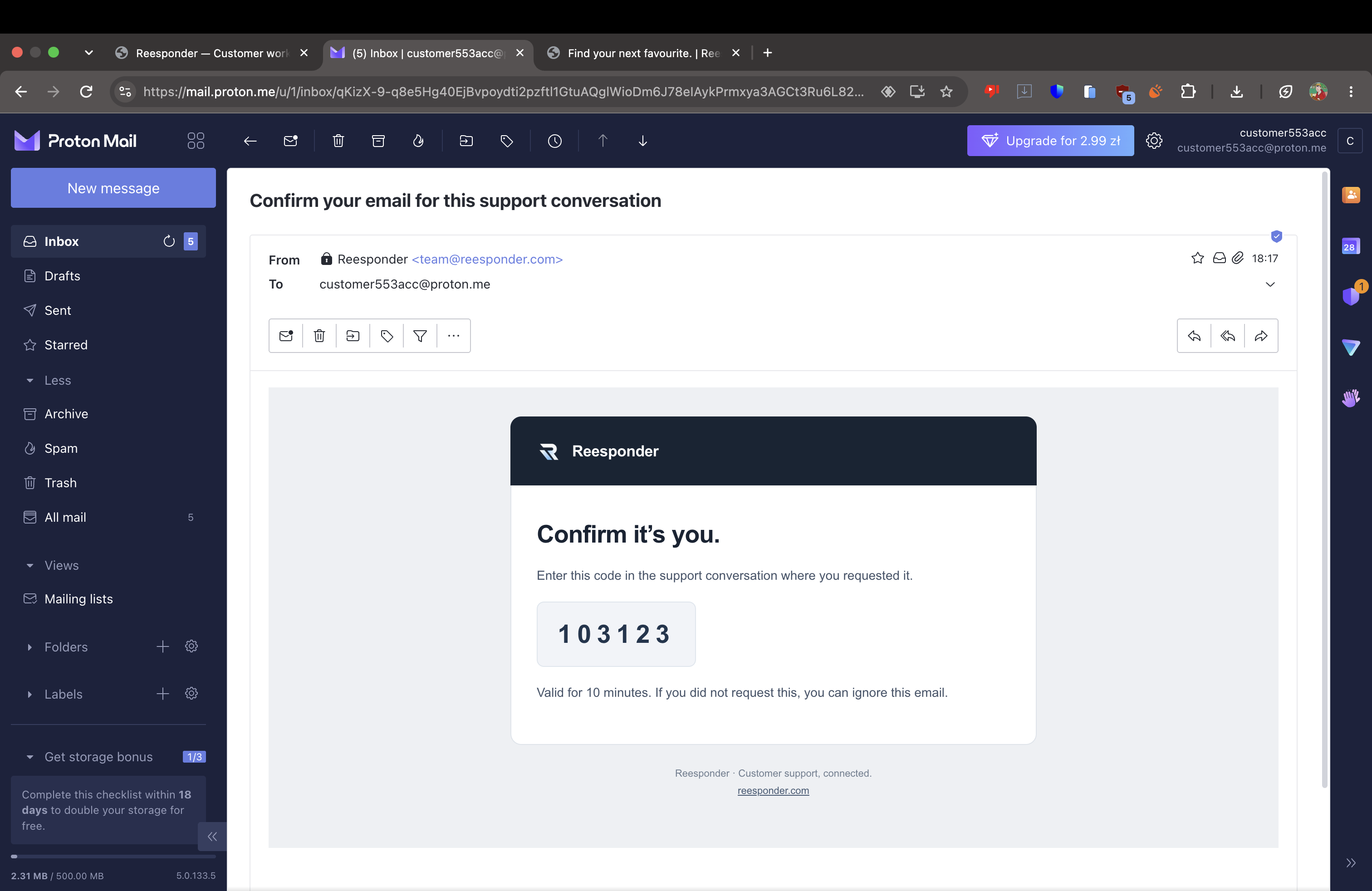
The code arrives by email.

Reesponder sends a six-digit code to the customer’s email address. The customer returns to the verification form in the widget and enters the code there before continuing to their account information.

The verification email contains the code used in the widget.

Read the purchase history

Recommendations grounded in the account.

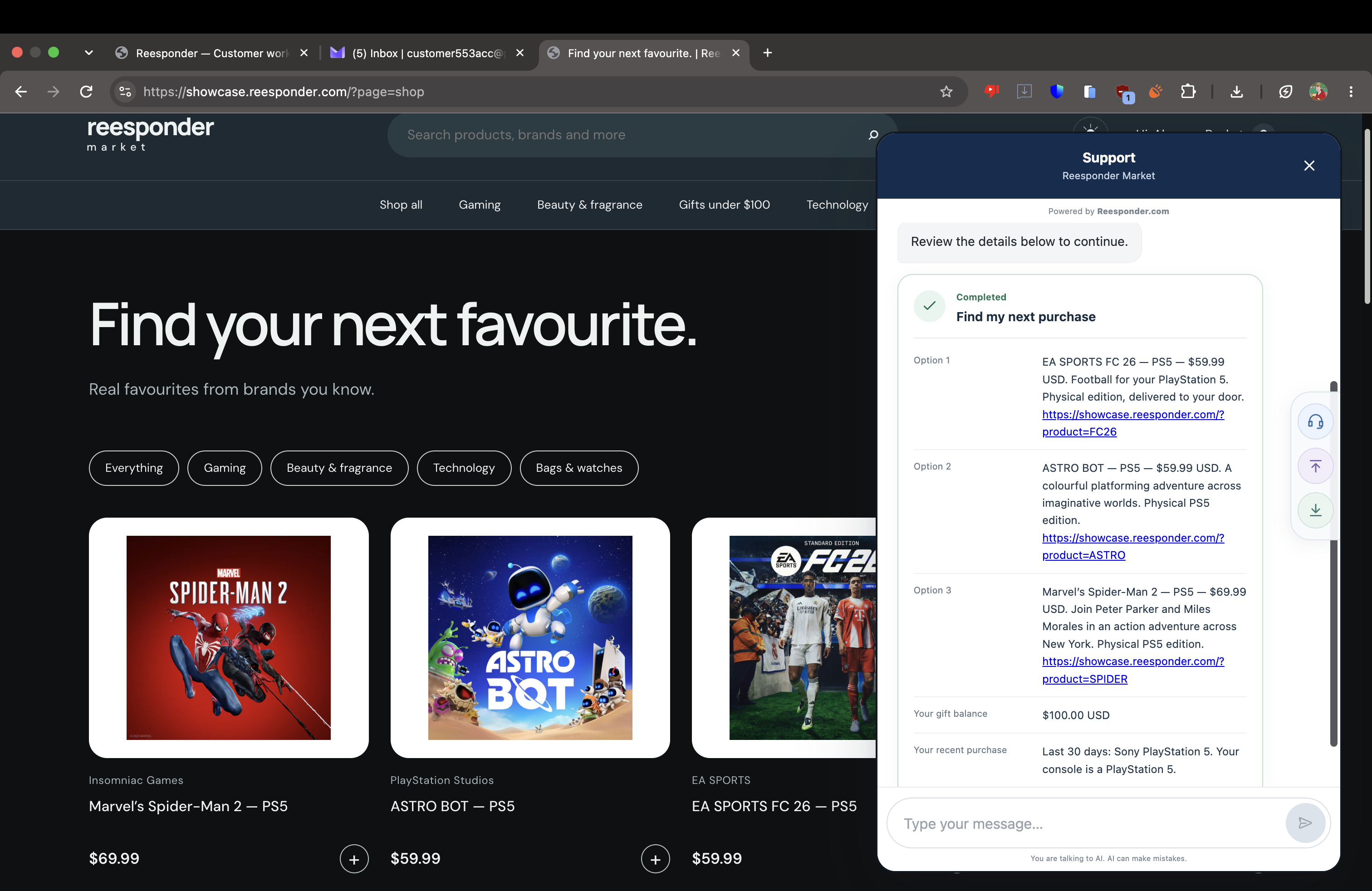
The API finds a recent PlayStation 5 purchase and a $100 gift balance. It returns three compatible games: EA SPORTS FC 26, ASTRO BOT and Marvel’s Spider-Man 2. Each recommendation is grounded in the customer’s orders and the current catalogue.

The completed Action returns purchase history, gift credit and three compatible games.

Check price and delivery

A price for this product. Delivery to this customer.

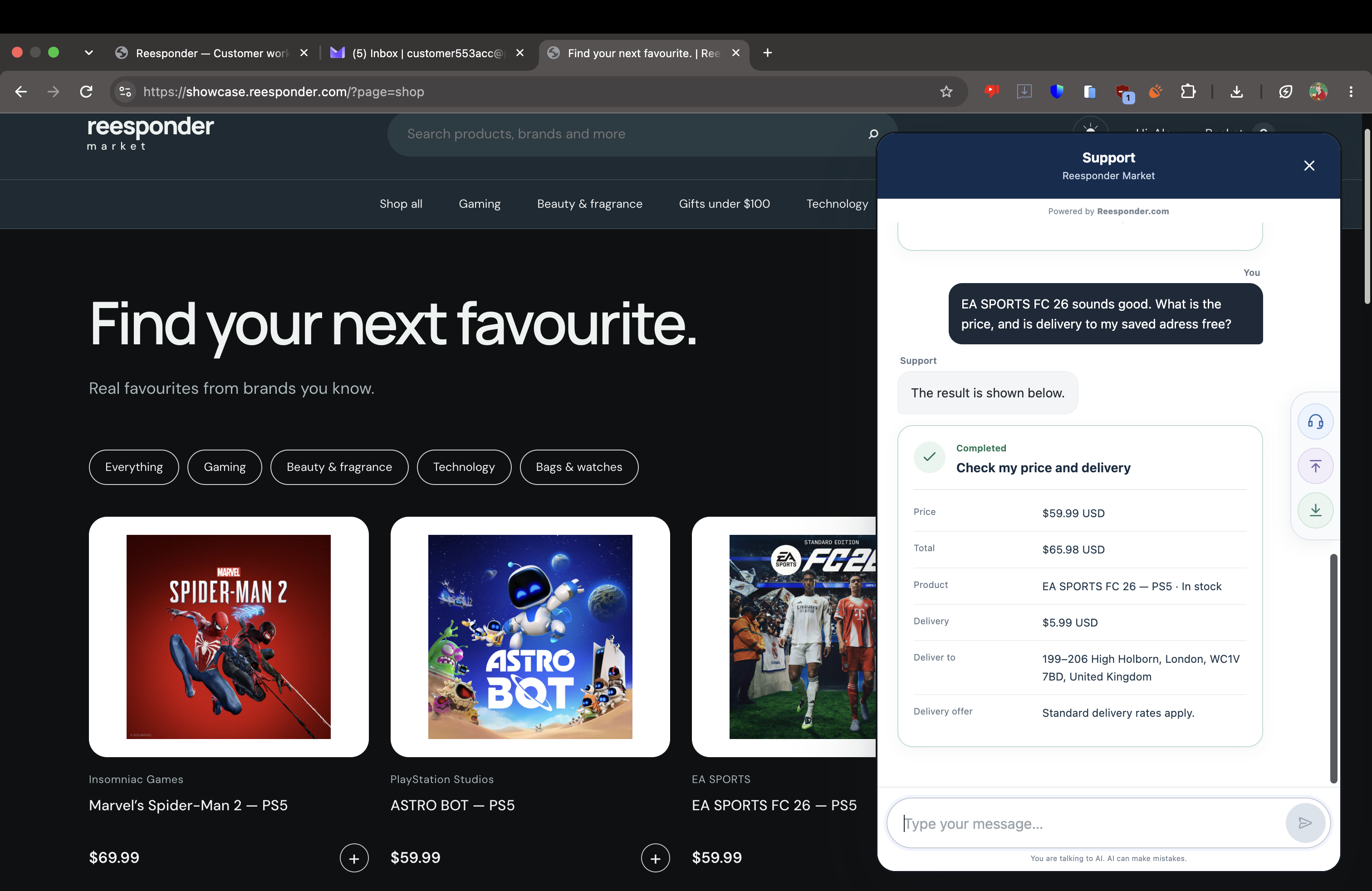
The customer chooses EA SPORTS FC 26. A second Action checks the price and saved delivery address. The game costs $59.99, delivery is $5.99 and the total is $65.98. The figures come from the API response, reflecting the delivery rules in force at the time.

Price and delivery are calculated for the selected game and saved address.

Confirm the basket update

The customer stays in control.

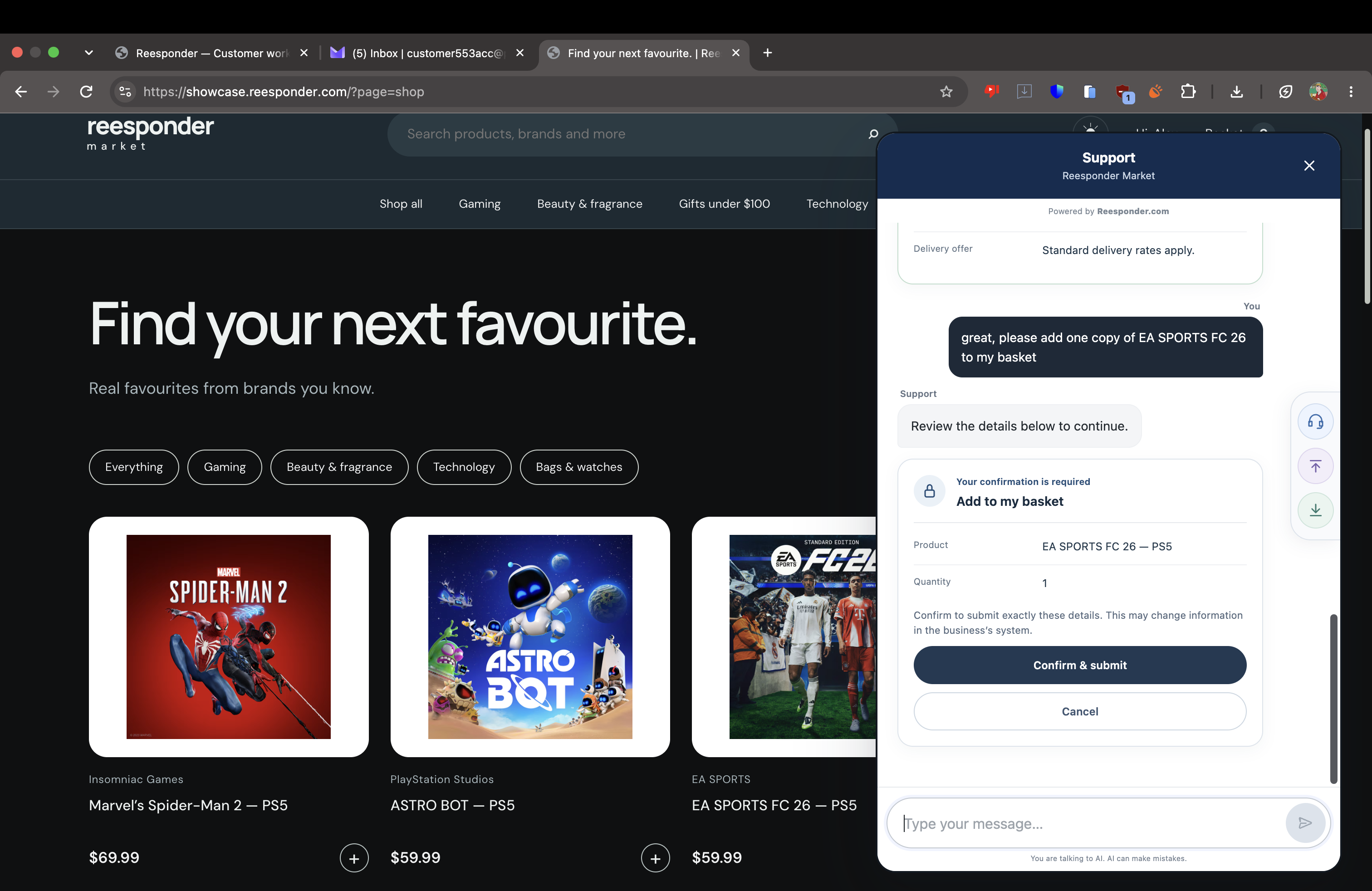
Adding a product changes the account. The widget presents the proposed Action and its inputs, including the selected game and quantity, before submission. The customer can check the details and explicitly confirm the change.

The customer reviews the product and quantity before confirming the basket update.

Continue to checkout

A basket update with a next step.

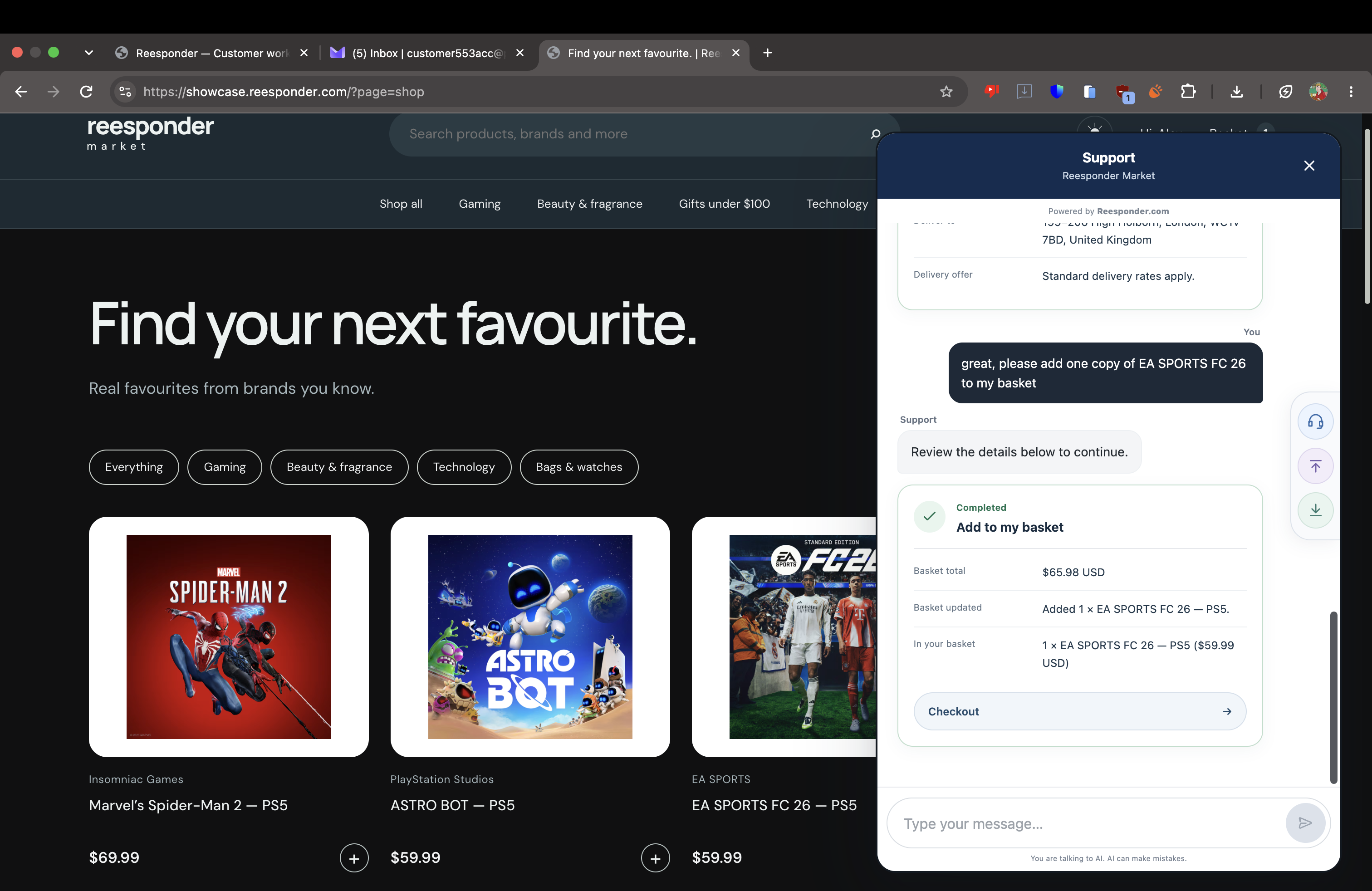
After the request succeeds, the widget displays the basket result and a checkout link. The customer continues to the store’s checkout. The account screen below shows the completed game order and the gift balance reduced from $100 to $34.02.

The completed basket Action provides the total and a checkout link.

The basket is updated in the store.

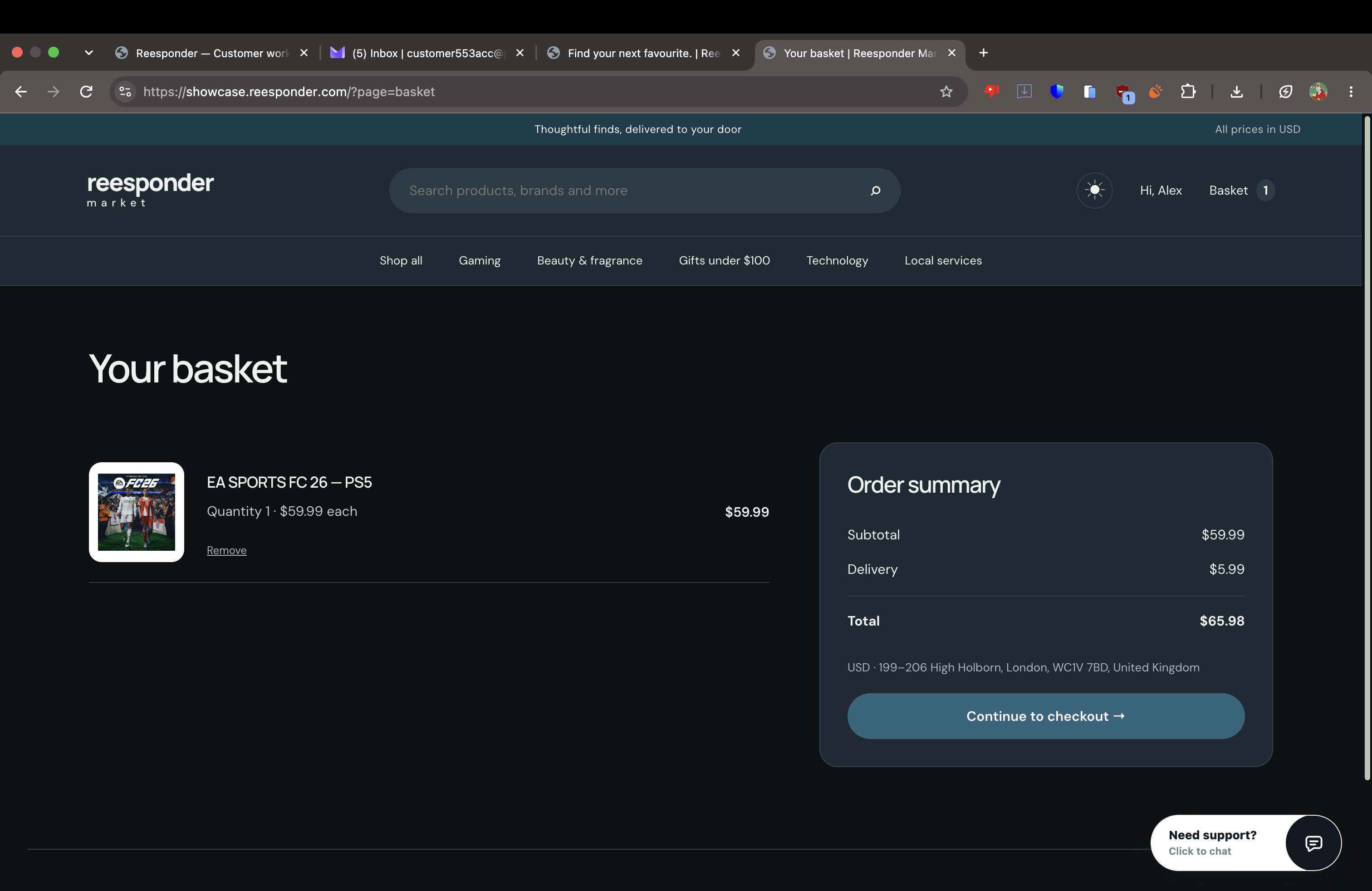
The item added through the conversation appears in the basket with its quantity, price and delivery charge. The customer can review it using the store’s normal interface.

The store basket contains one EA SPORTS FC 26 game, with delivery included in the total.

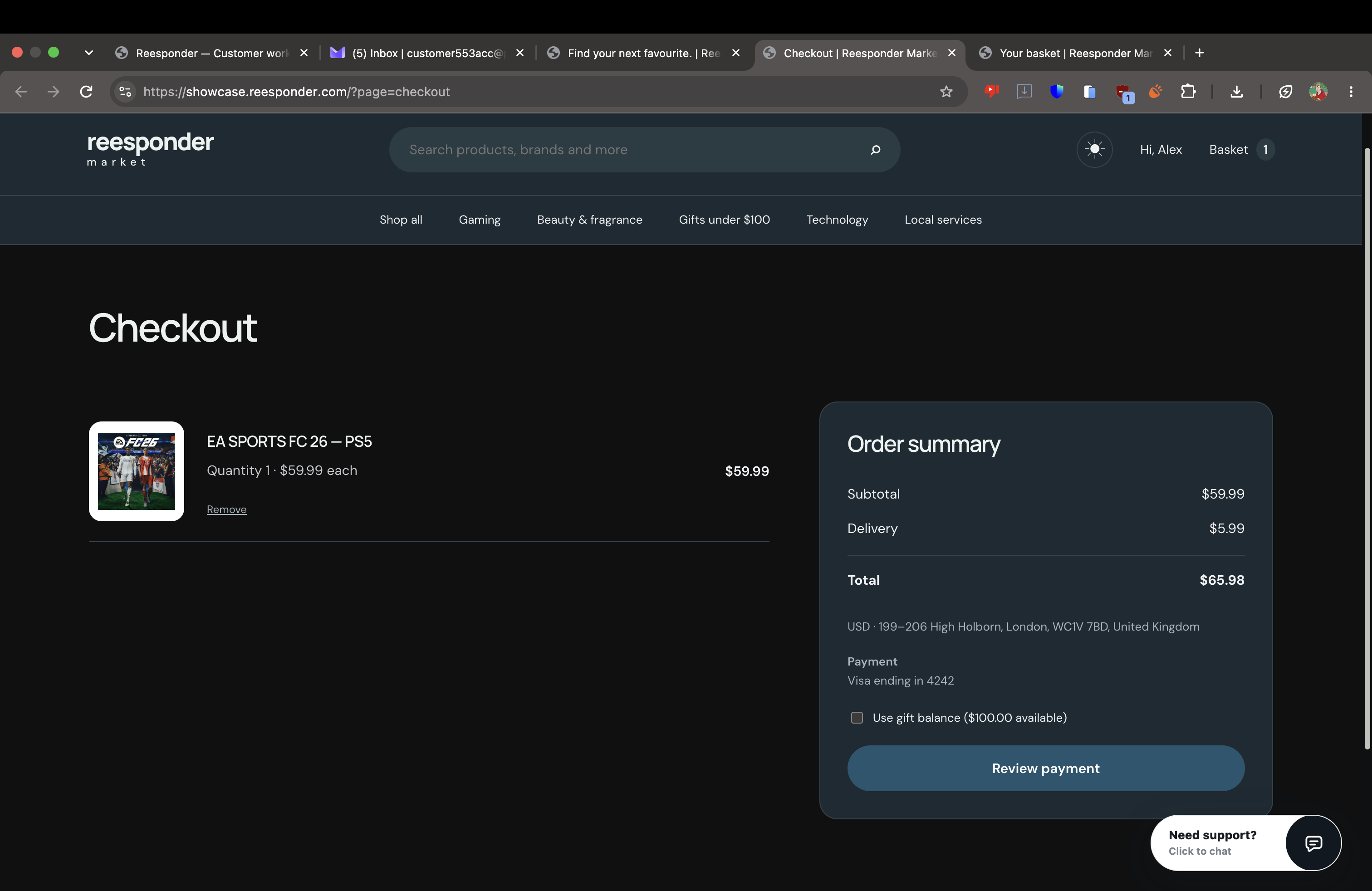
Gift credit is applied at checkout.

The checkout shows the available $100 balance. The customer chooses to use it and reviews the payment. The resulting order uses $65.98 of credit, with no card charge for this purchase.

Checkout offers the available gift balance before the customer reviews payment.

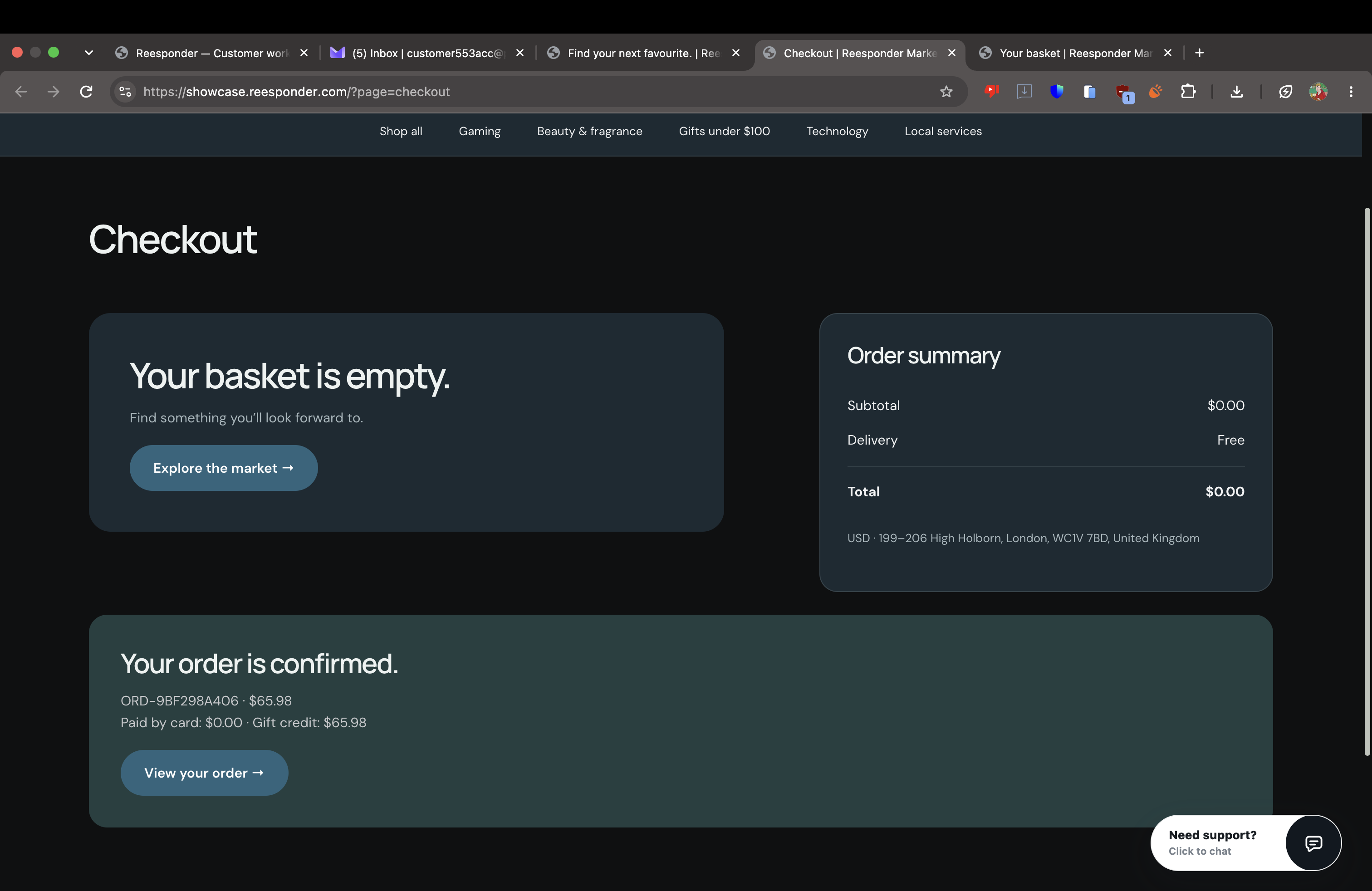
The order has its own confirmation.

The store confirms order ORD-9BF298A406. This closes the journey from a recommendation in chat to an order in the commerce system.

The confirmed game order is paid entirely from the gift balance.

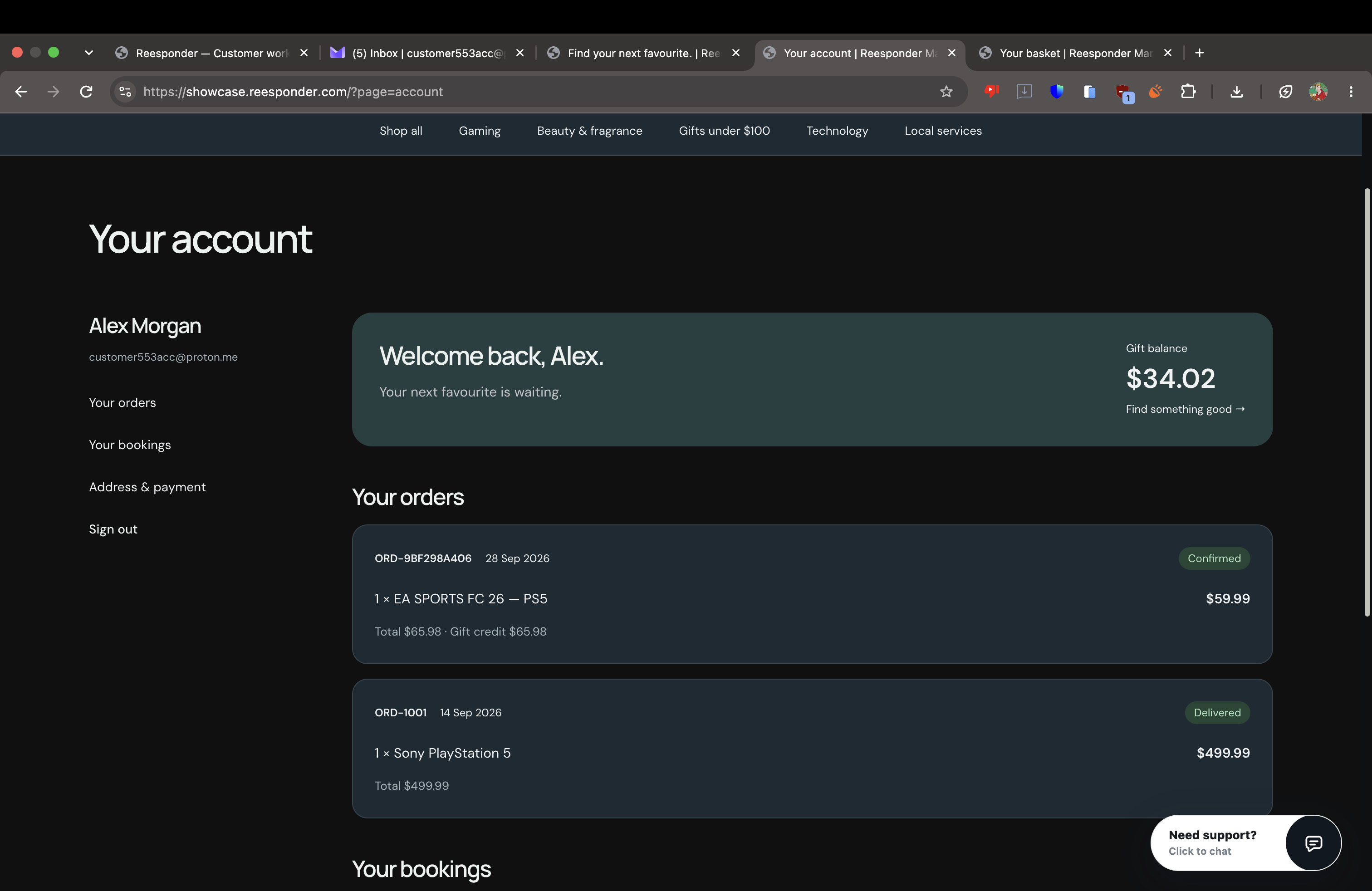
The result is visible outside the chat.

The game appears in the account’s order history. The remaining gift credit is $34.02. The conversation and the store now tell the same story.

From discovery to checkout

“The first option looks perfect.” That is enough to keep going.

A customer should be able to choose naturally. Actions can use the context of the conversation to turn a recommendation into a basket update, without sending the customer back through a product search.

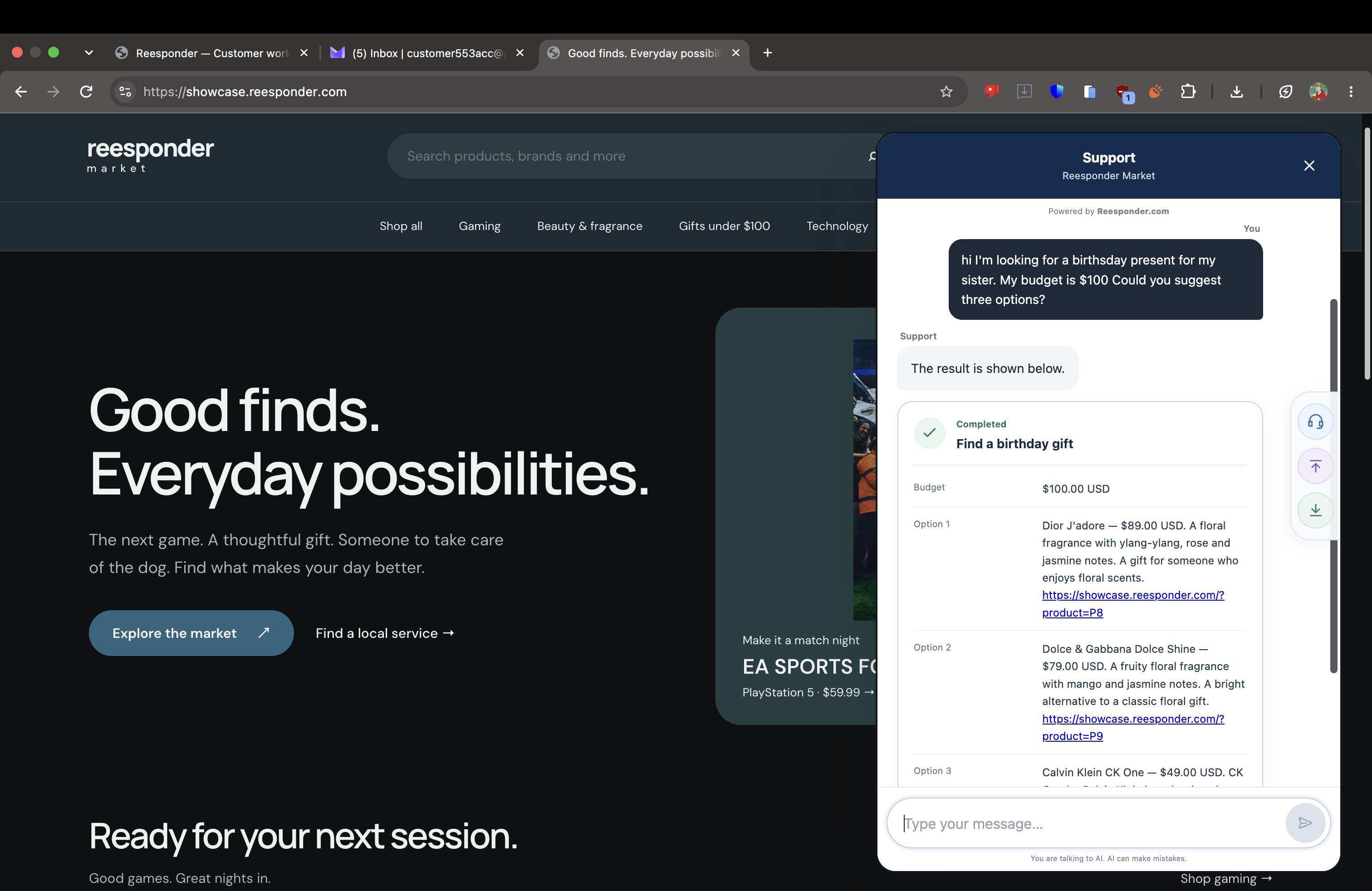
“What could I buy my sister for her birthday? My budget is $100.”

Find suitable products

A budget becomes a useful shortlist.

The catalogue Action receives the budget and returns Dior J’adore, Dolce & Gabbana Dolce Shine and Calvin Klein CK One. Product names, prices and links come back together, giving the customer enough information to make a choice.

The gift-search Action returns products within the customer’s budget.

Choose in ordinary language

The first option becomes the selected product.

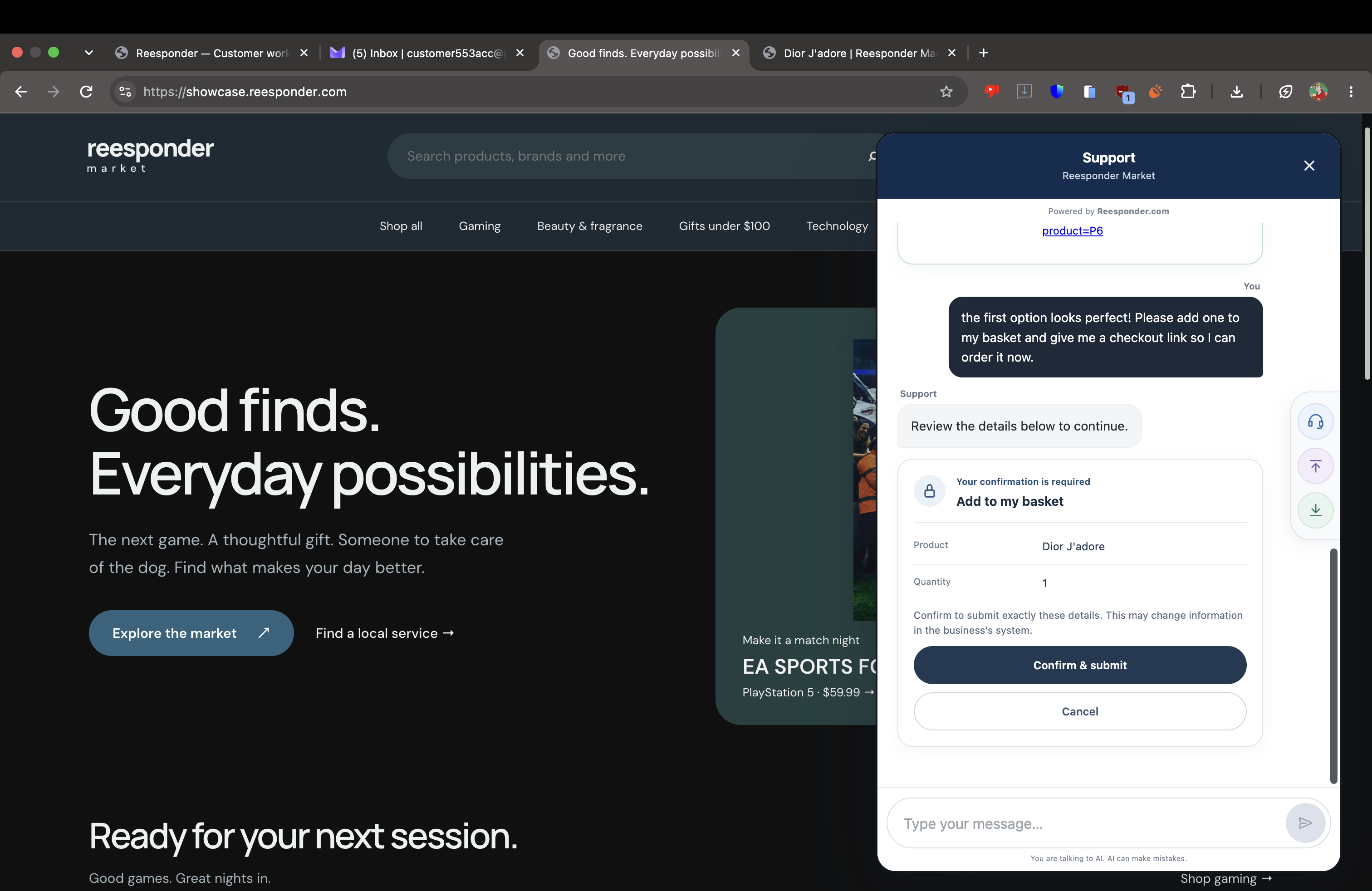
The customer asks to add the first suggestion and receive a checkout link. The assistant resolves that reference to Dior J’adore and prepares a basket update for one item. The confirmation card makes the selection visible before submission.

“The first option” is resolved to Dior J’adore in the basket confirmation.

Open the checkout

From a recommendation to a ready basket.

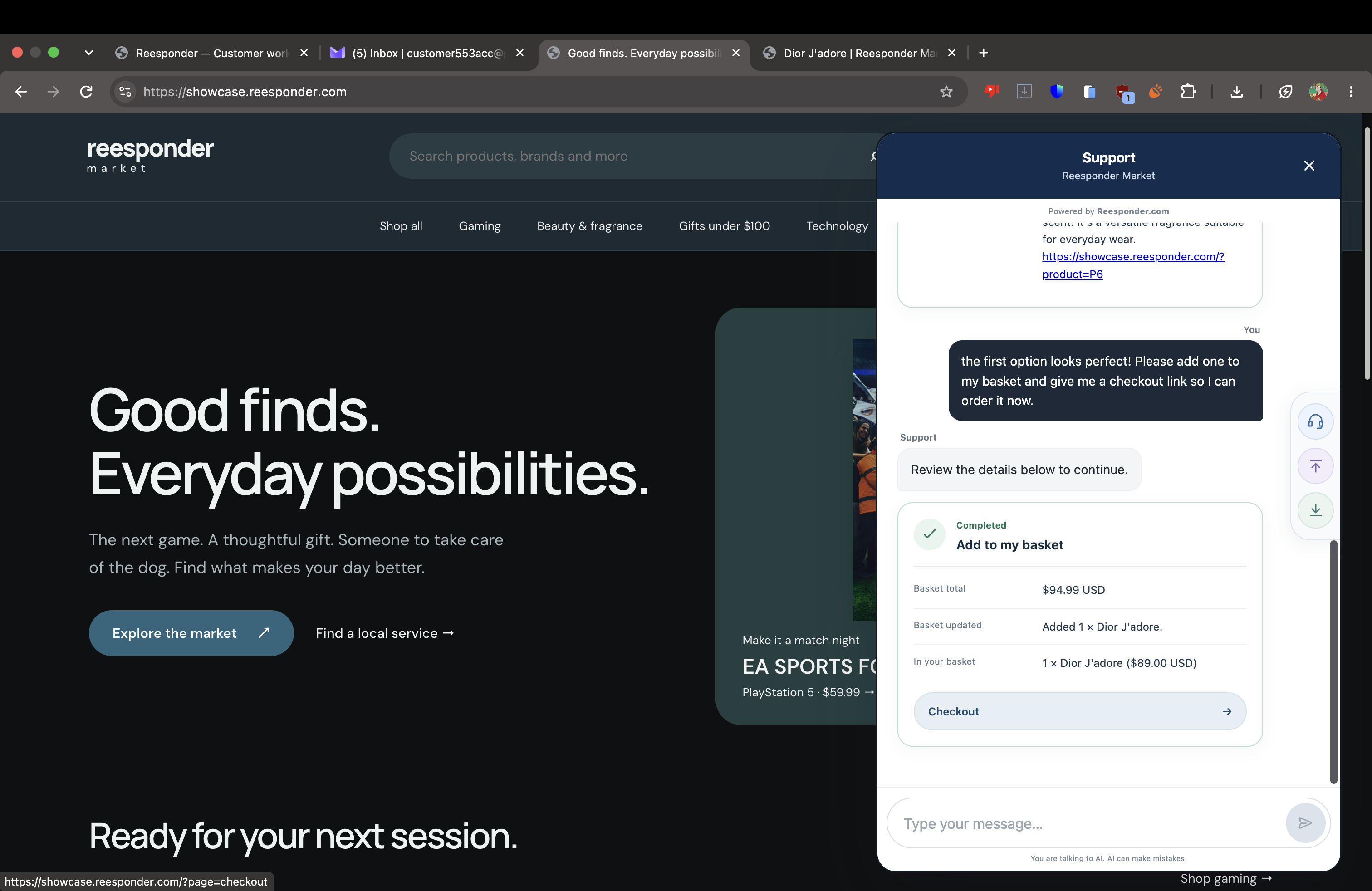
The API confirms the update and returns a $94.99 total, including delivery. The checkout link leads to the store’s order review with the chosen product in place. This walkthrough ends at checkout, where the customer can choose how to pay.

The basket is updated and the customer receives a direct checkout link.

The product is waiting at checkout.

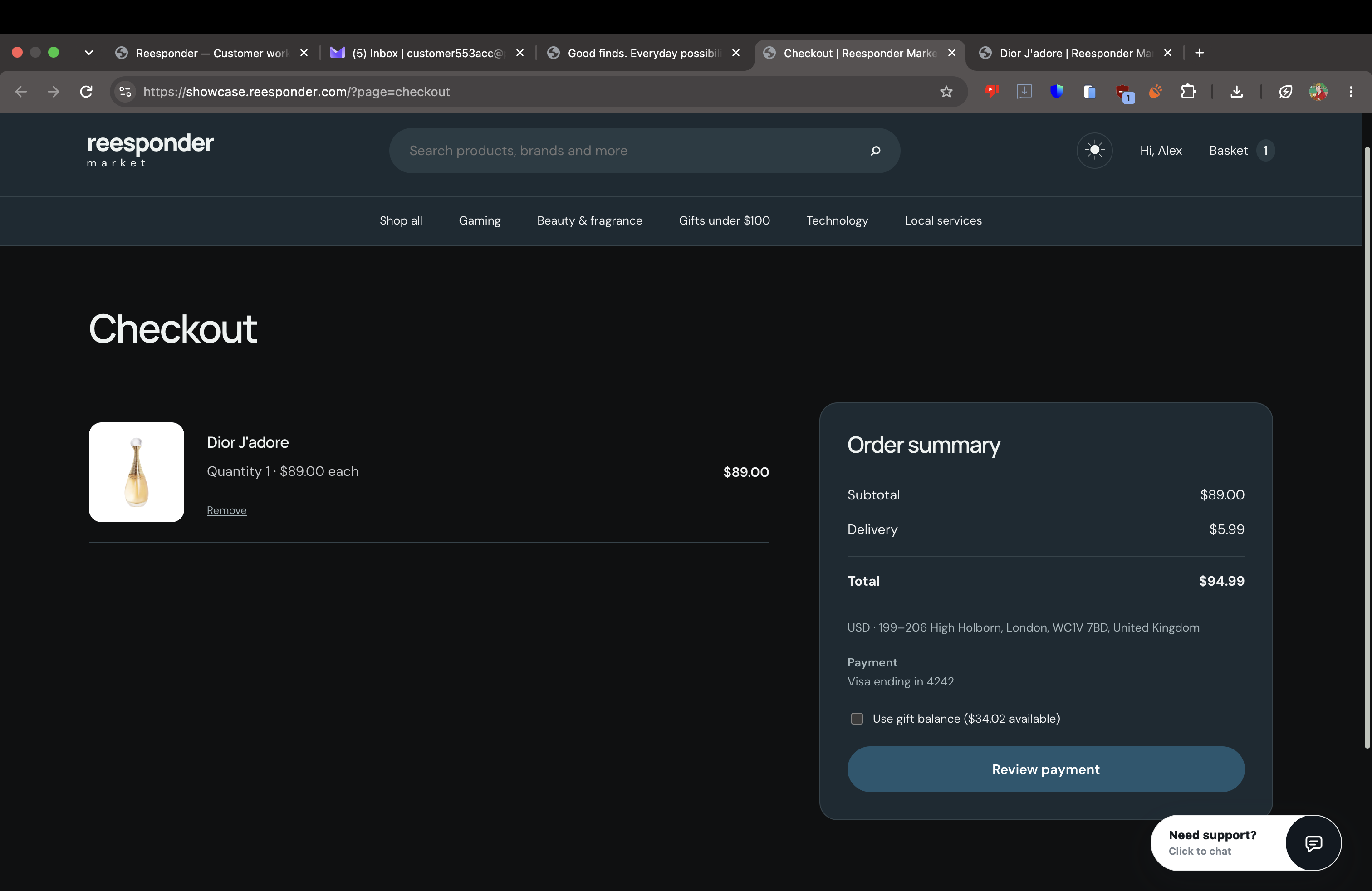
Dior J’adore is already selected, delivery is included and the available gift balance is shown. The customer can review the purchase and continue using the store’s payment flow.

Checkout contains the selected gift, delivery charge and available account credit.

Booking a service

A time-sensitive request. A confirmed booking.

Actions can work with services as well as products. Availability, location, duration and price come from the booking system, while the customer reviews the commitment before it is submitted.

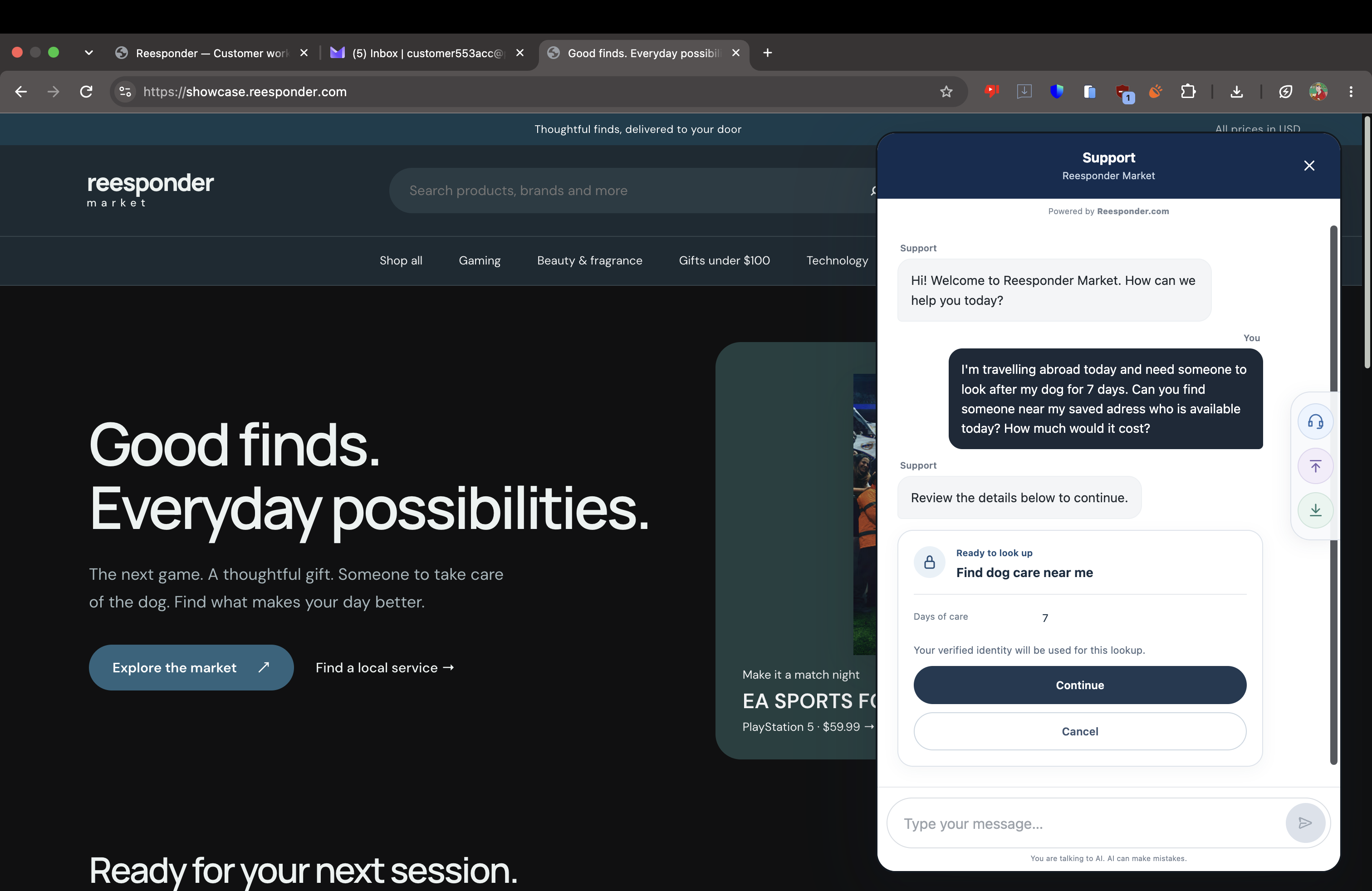
“I’m leaving today and need someone to look after my dog for seven days. Is anyone available near me?”

Ask for help

The request starts with the customer.

The customer explains that they are travelling today and need seven days of dog care near their saved address. Reesponder prepares the lookup with the requested duration and the verified account, before retrieving availability and a quote.

The customer asks for seven days of dog care and reviews the prepared lookup.

Find an available service

The search uses the saved address.

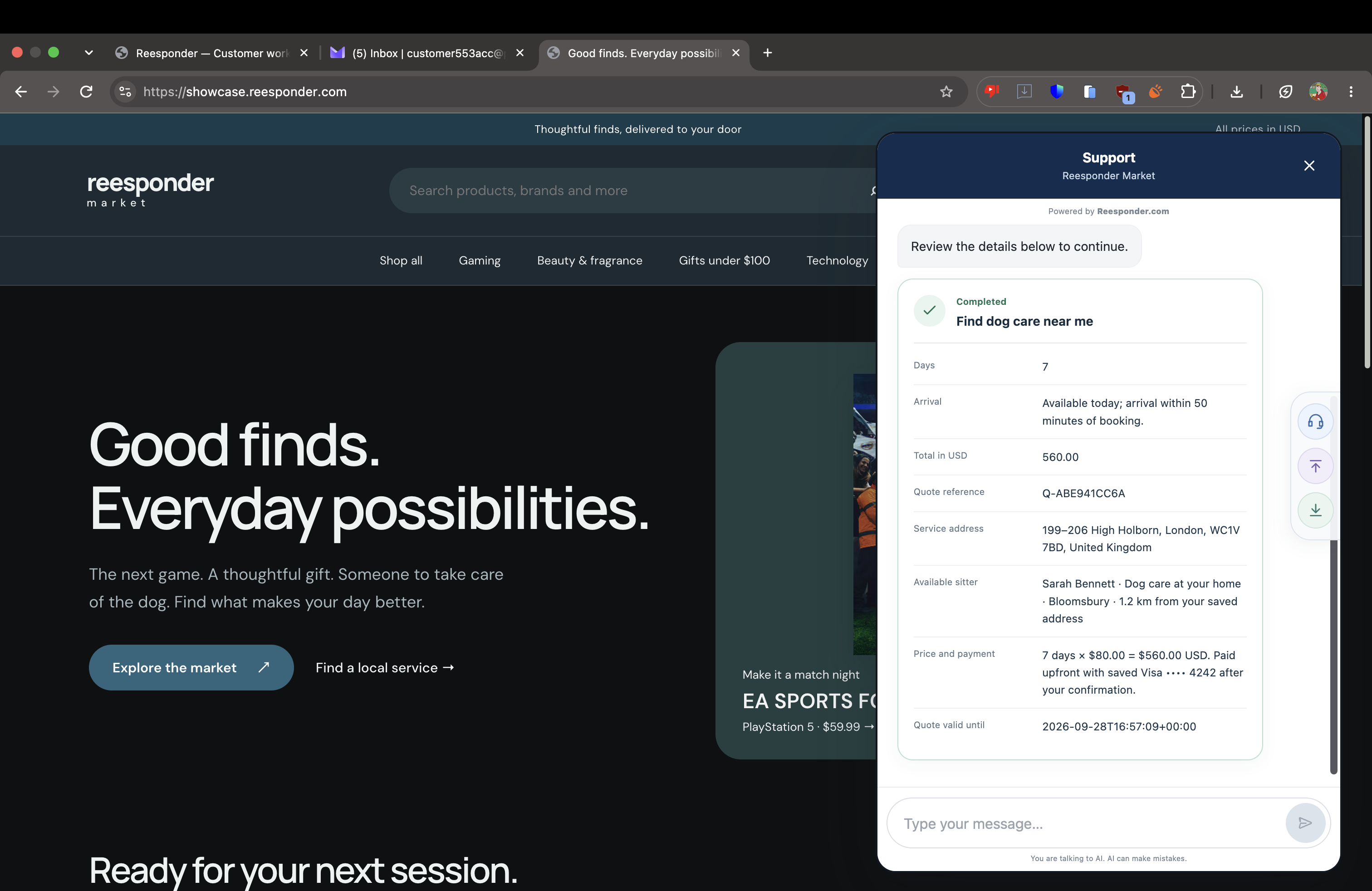
The API returns Sarah Bennett in Bloomsbury, 1.2 km from the customer’s address, at $80 per day. The seven-day quote totals $560 and includes an arrival estimate within 50 minutes of booking. A quote reference connects the offer to the reservation request.

The lookup returns a nearby provider, a seven-day quote and an arrival estimate.

Review and confirm

The terms travel with the request.

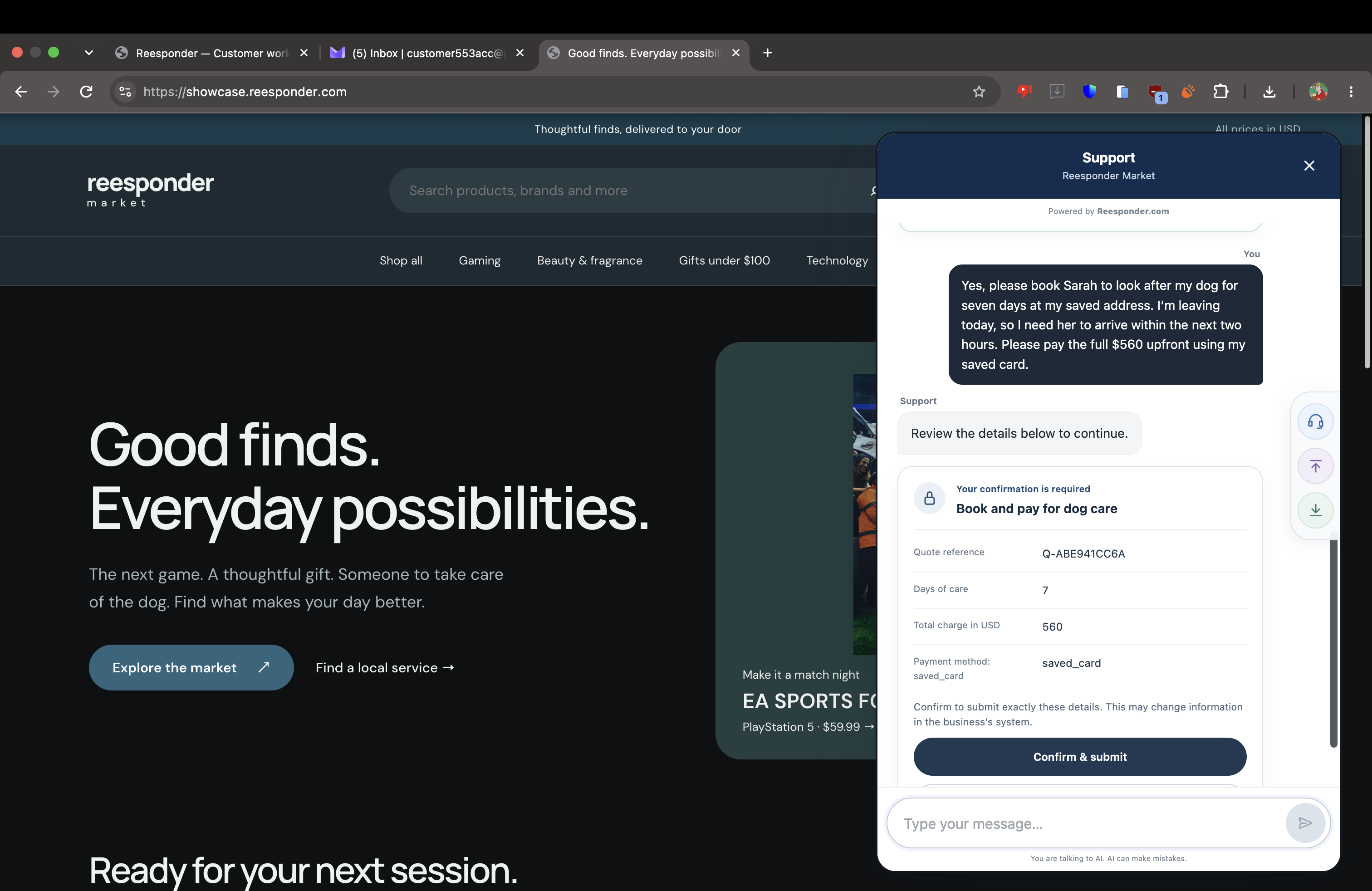
The customer asks to book seven days and pay $560 upfront using the card saved on the account. The widget presents the inputs for confirmation. The booking API validates the quote, authorises the account and processes the requested operation.

The customer confirms the booking, quoted total and saved payment method.

Receive the booking result

A result the customer can use.

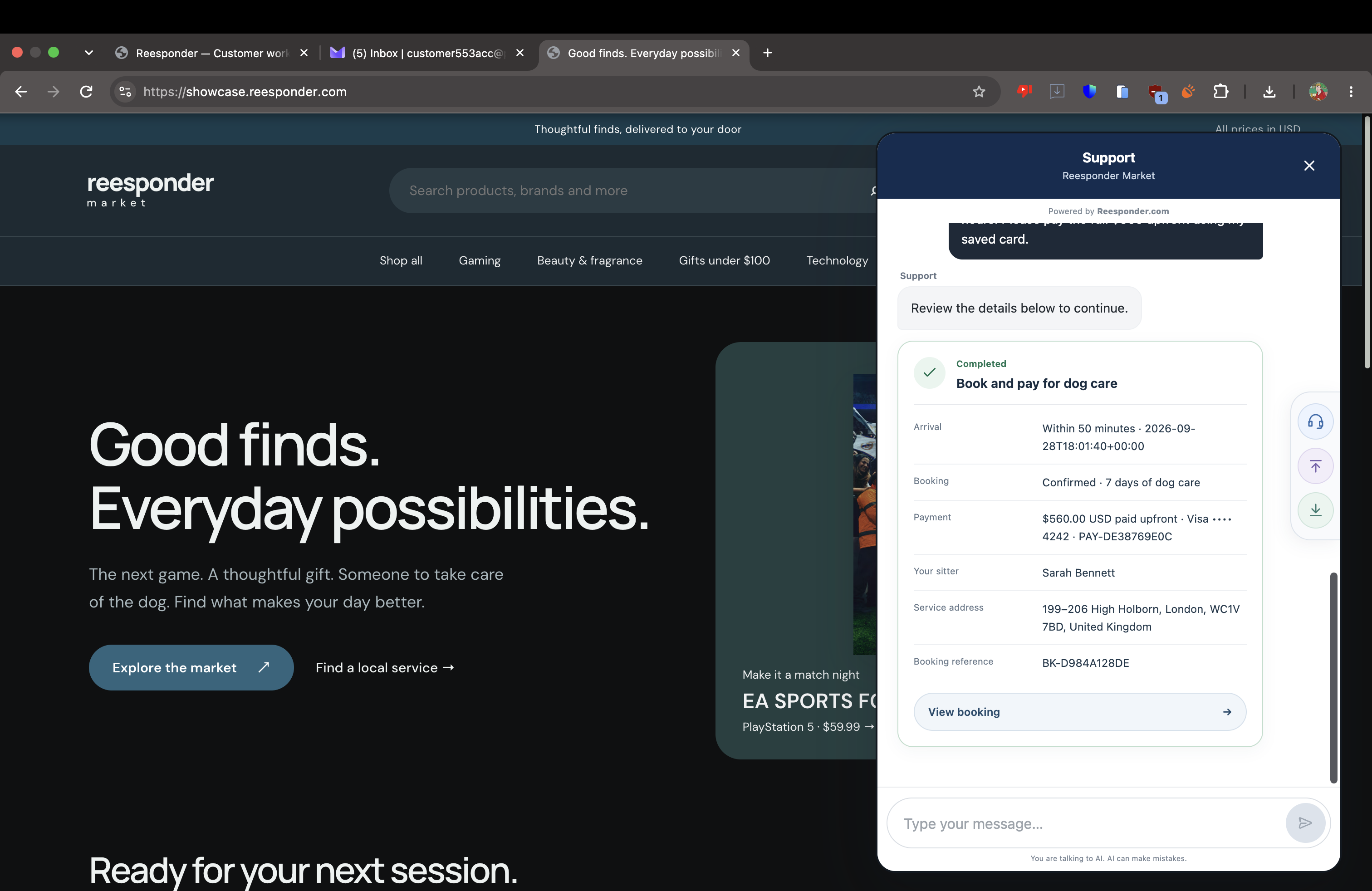
The completed Action returns the provider, address, arrival time, payment result and booking reference BK-D984A128DE. The customer can open the booking from the result card. The account view shows that same reservation, including its dates and payment status.

The completed Action returns the booking reference, arrival details and payment result.

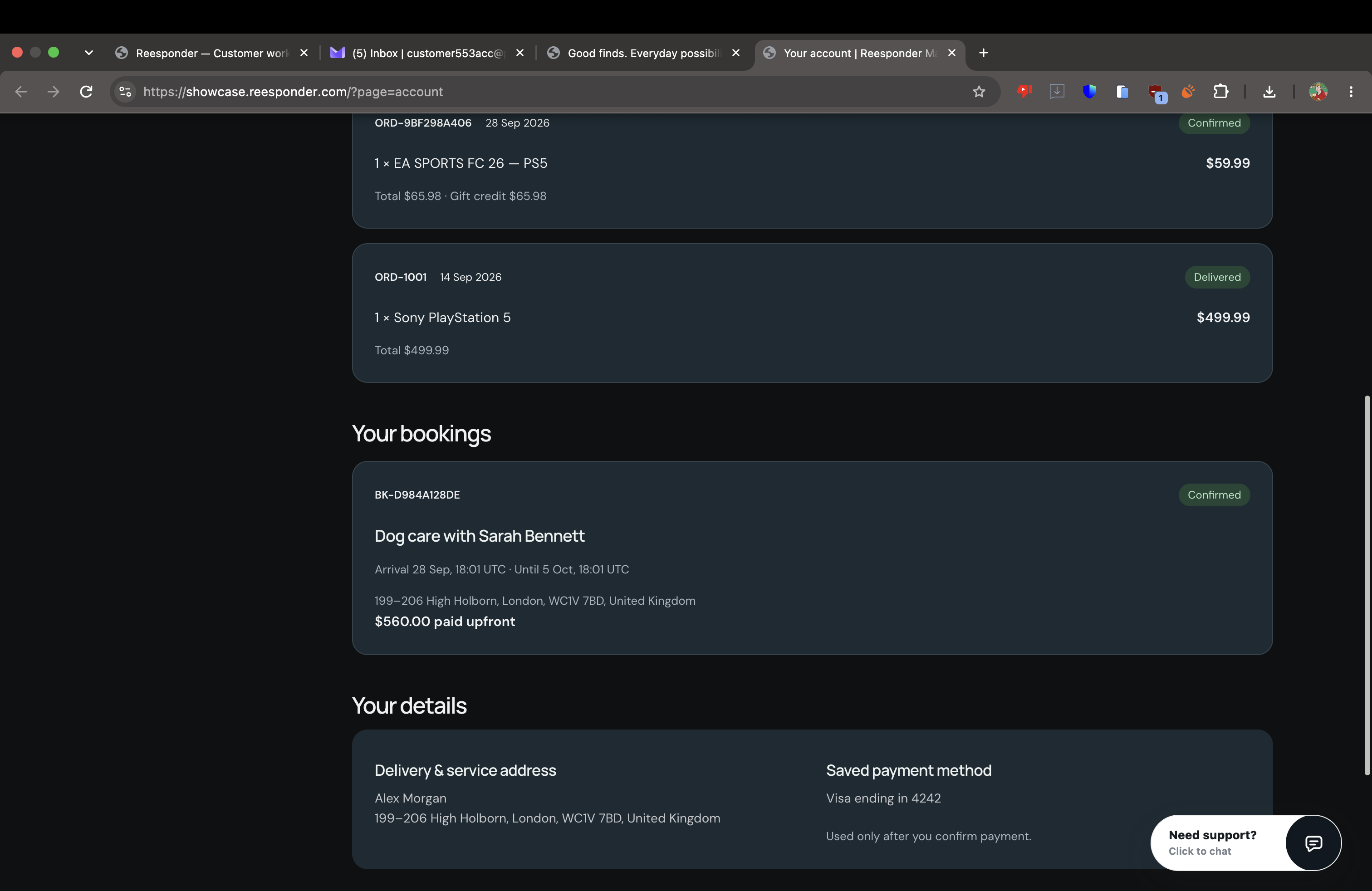
One reference. The same booking on the account.

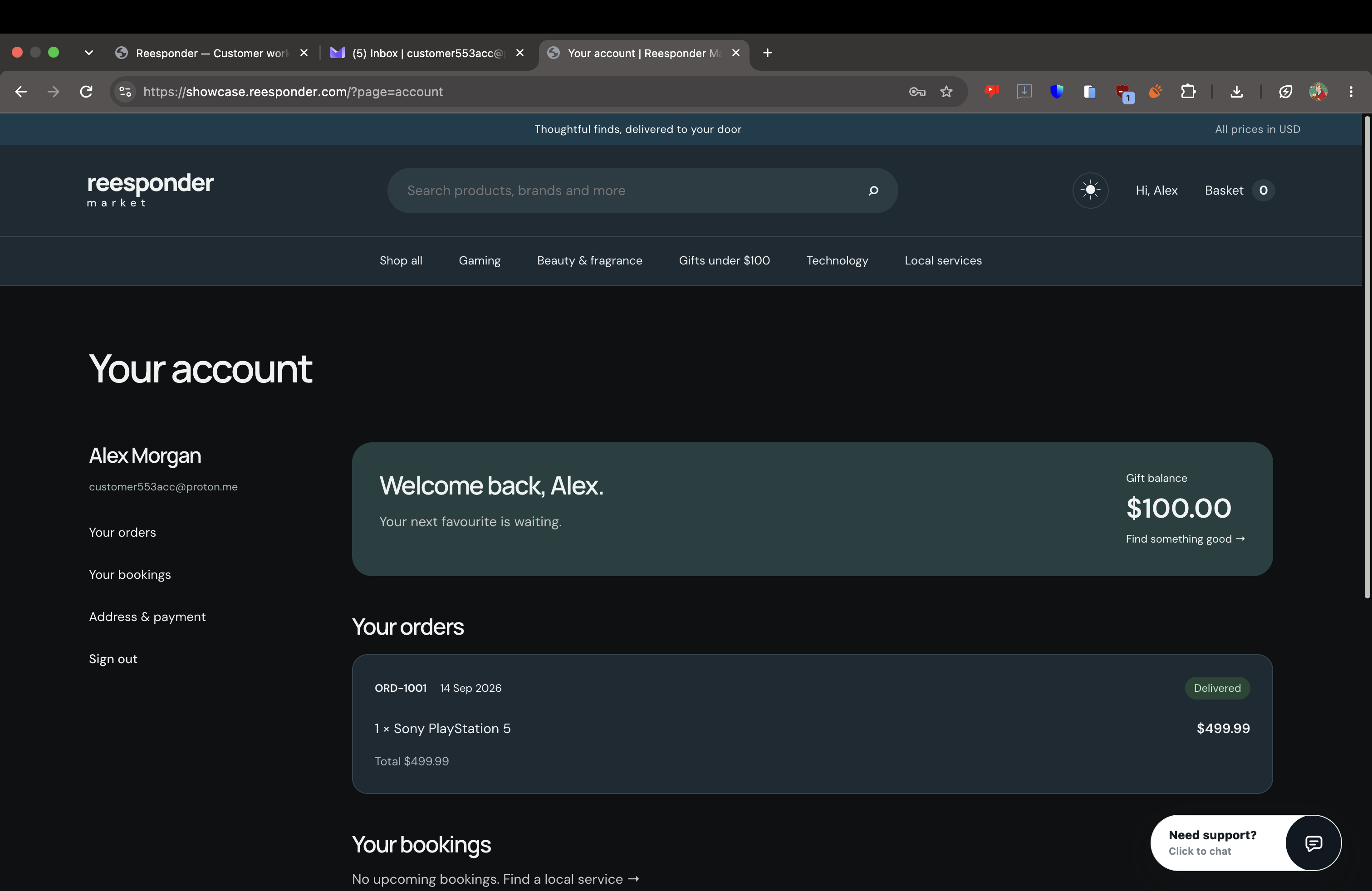
BK-D984A128DE appears in “Your bookings” with Sarah Bennett, the seven-day period, saved address and $560 paid upfront. The customer has a record to return to after the conversation ends.

The account displays the same confirmed booking and payment result as the chat.

Useful autonomy.
Clear boundaries.

You decide which operations exist, where they run and what information can come back. Your customer sees what matters at each step.

Read the right information

A read Action looks up information through your HTTPS endpoint. Use it for an order status, delivery quote, current balance or selection from your catalogue. Require verification when the result belongs to a private account.

Confirm before a change

A write Action prepares the request and shows a confirmation card. The customer reviews the inputs before submission. Adding an item, requesting a return or making a booking becomes an explicit step in the conversation.

Show the returned result

Map the response fields customers may see. A successful operation can return a status, amount, reference and useful link. The result card gives those details a consistent place in the chat.

Inside your Reesponder workspace

Set up an Action.
Know exactly what it does.

Start with one useful task and a working endpoint. Configure it in the panel, test the saved connection and enable it for your website.

Choose the website and the task.

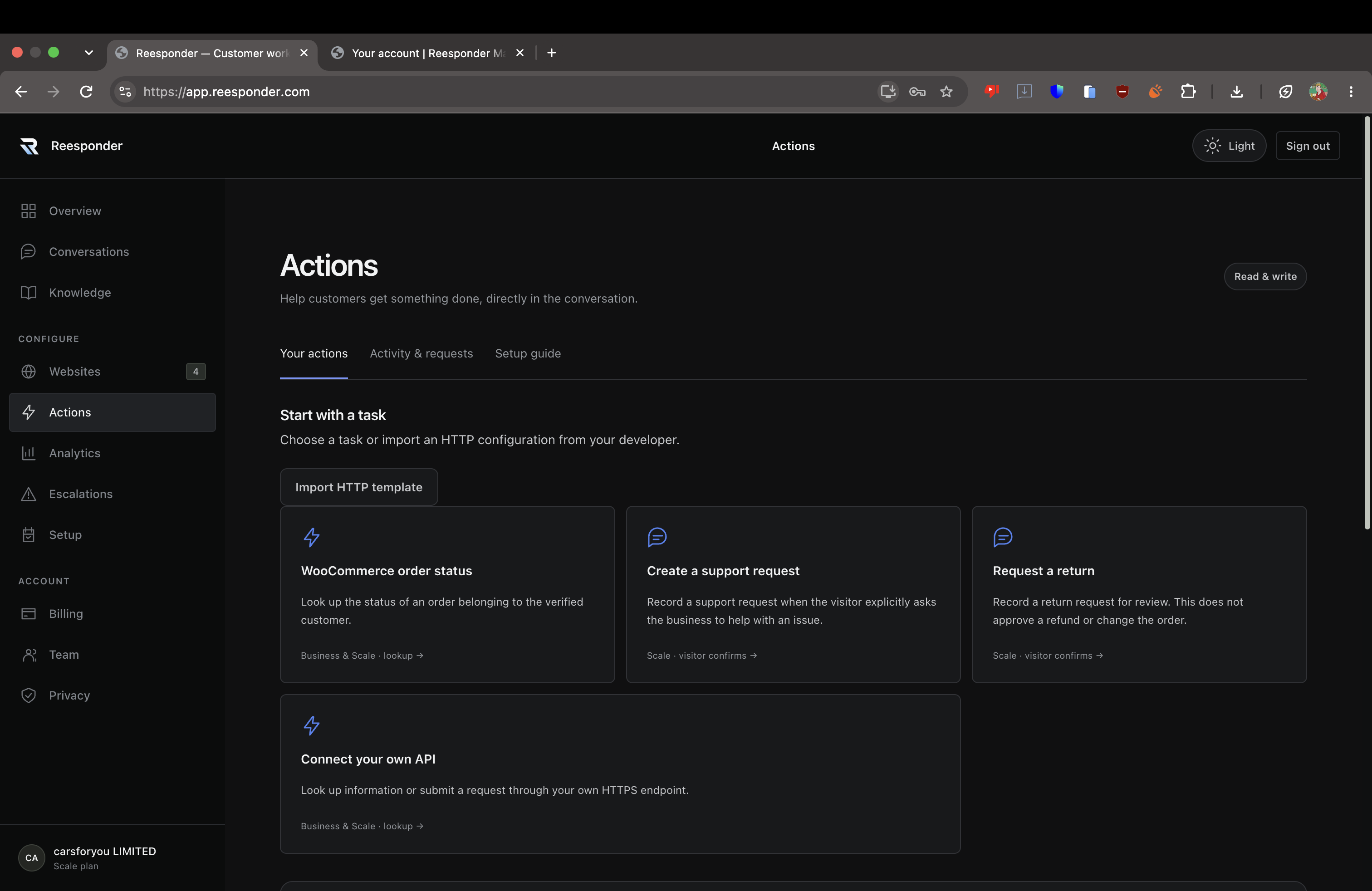
Make sure your widget is installed on the website you want to connect. Open Actions → Your actions. Choose Connect your own API to configure an endpoint, or Import HTTP template to load a JSON configuration prepared by your developer.

A template pre-fills the configuration; you still choose the website, review the endpoint and provide its credentials. The seven inline marketplace configurations below show how these examples are structured.

Keep your website knowledge for product explanations, policies and business facts. Use Actions for information that must be retrieved from an account or current operational system.

Start in Actions: connect your own API or import an HTTP template.

Describe when to use it.

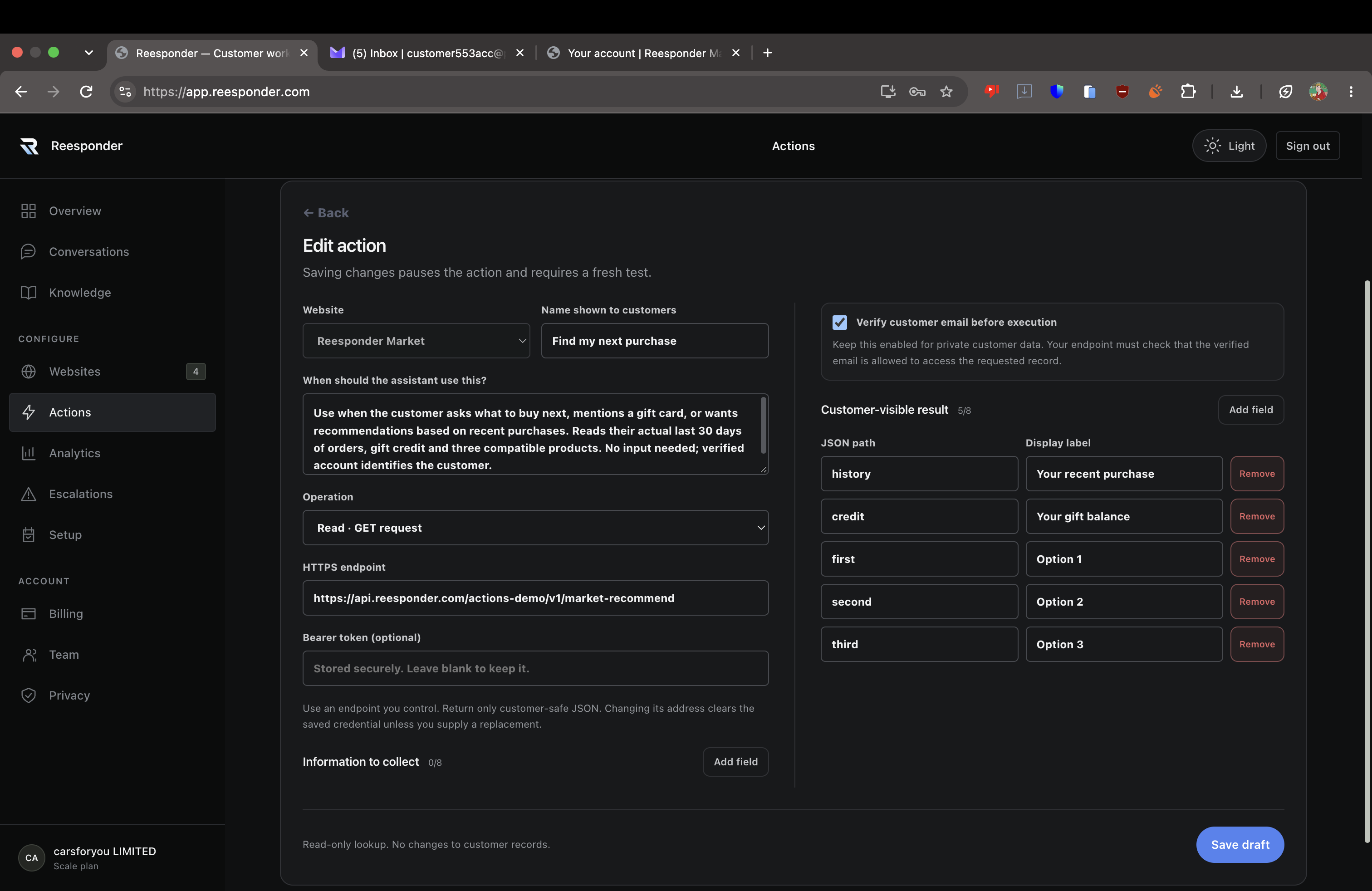
Give the Action a clear customer-facing name. In When should the assistant use this?, describe the customer’s intent, the information returned and any necessary inputs. Write for natural requests such as “What should I buy with my gift voucher?”

For Find my next purchase, the endpoint reads the verified customer’s recent orders, gift balance and compatible recommendations. No console identifier needs to be collected because the API finds the purchase on the account.

Select Read · GET request, enter your HTTPS endpoint and set the response fields. This configuration maps history, credit, first, second and third to clear labels in the chat.

Purchase-history configuration: intent, GET endpoint, verification and response mapping.

What goes in the token field?

The bearer credential required by your endpoint. It is optional only when the endpoint does not require it. If the panel says a credential is already stored, leaving the field blank keeps it. This is separate from the widget’s installation token.

What does verification establish?

The widget verifies the customer’s email before a private Action runs. Your API must use that verified identity to authorise access to the account or record. An email typed in a chat message is not proof of ownership.

Test the saved configuration.

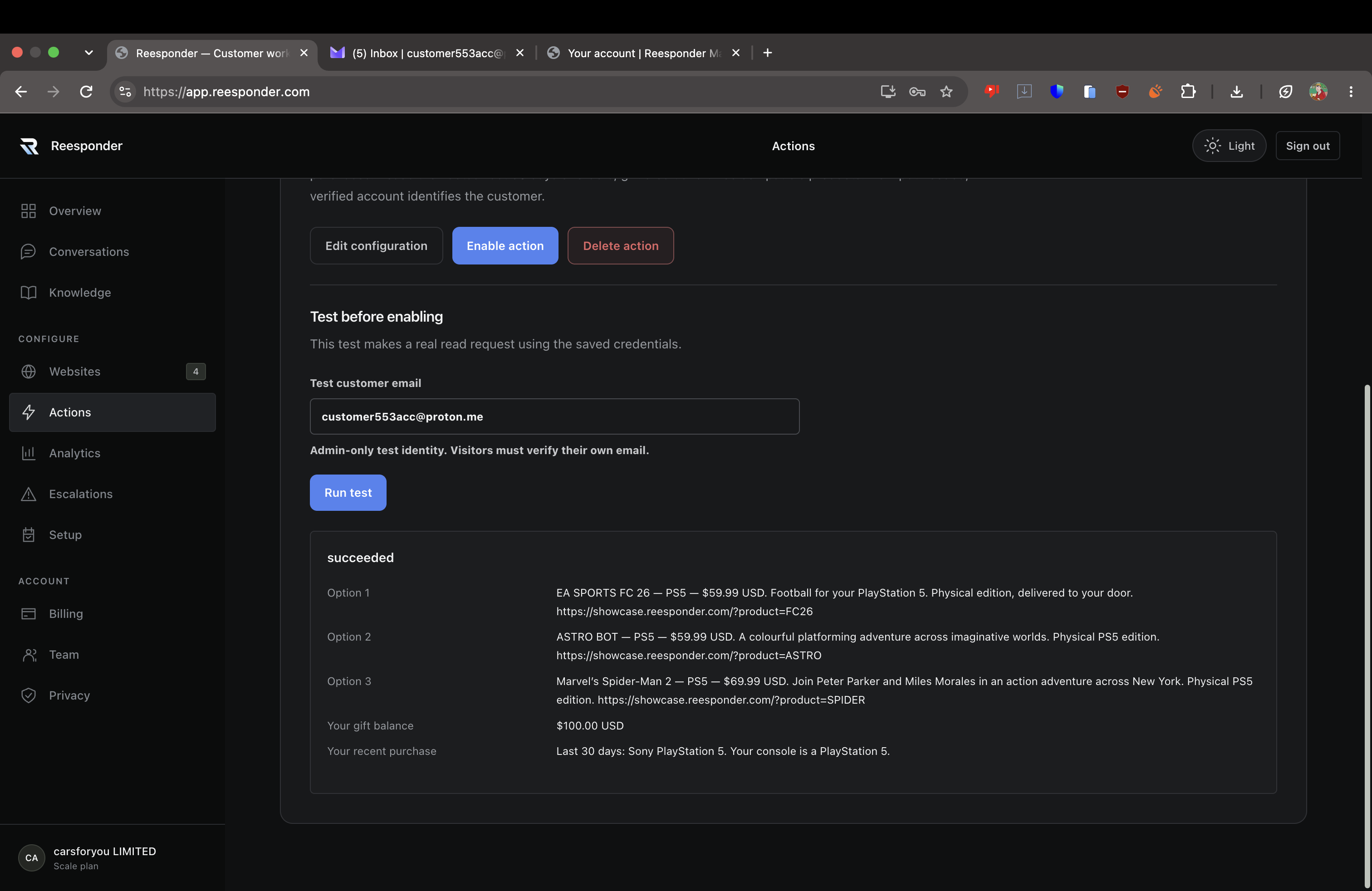
Choose Save draft. Enter the test inputs and test customer email when identity is required. Select Run test and inspect the returned values, labels and links.

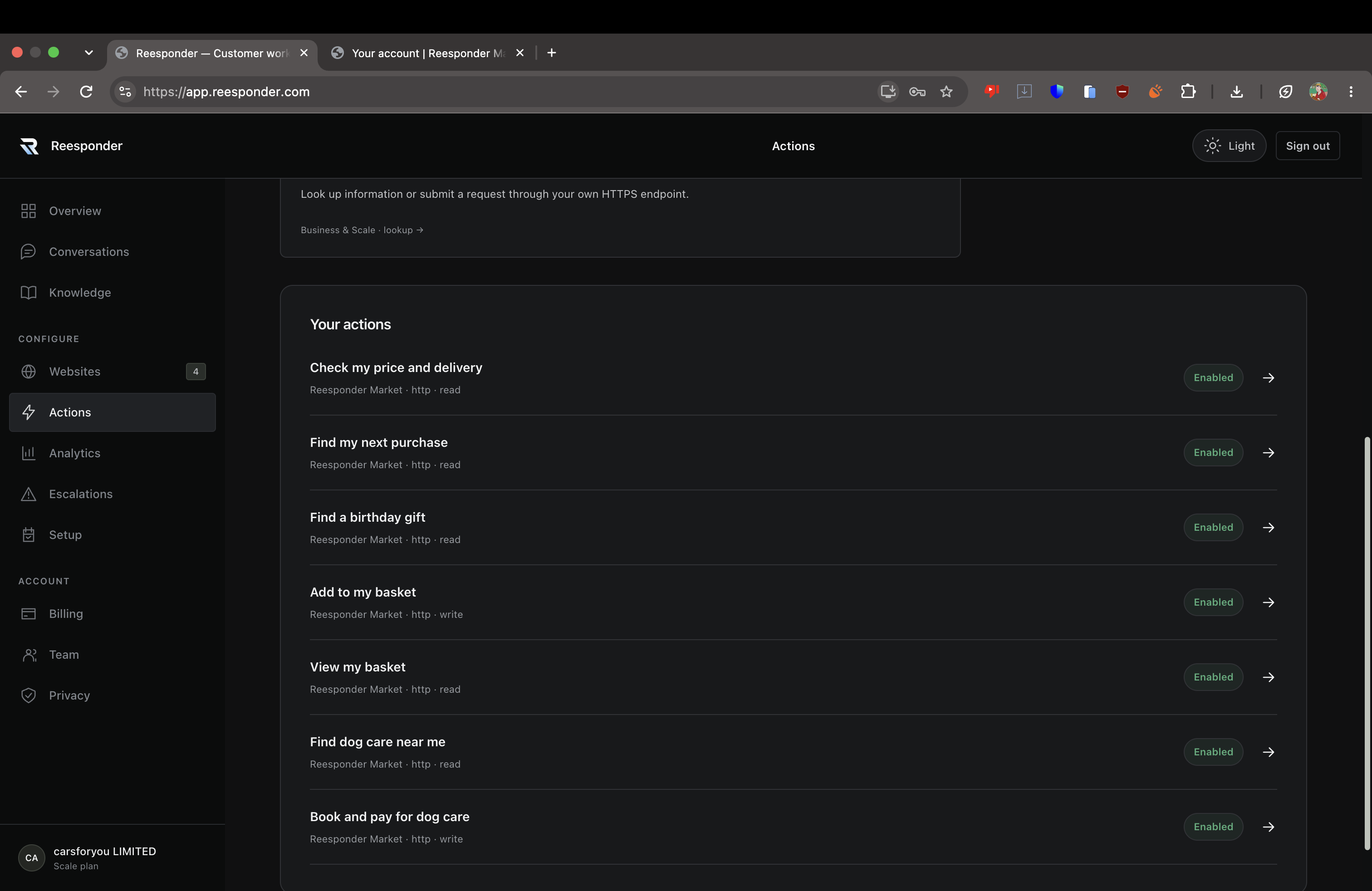
This screen shows a successful read test with the purchase history, $100 credit and three games. Select Enable action after reviewing the result. Saving an edited configuration pauses the Action and requires a fresh test before enabling it again.

A write test sends an actual request to your endpoint. Use a designated test account or record so you can inspect the resulting change.

A successful test returns the mapped values; the Action can now be enabled.

Configure the change you want to allow.

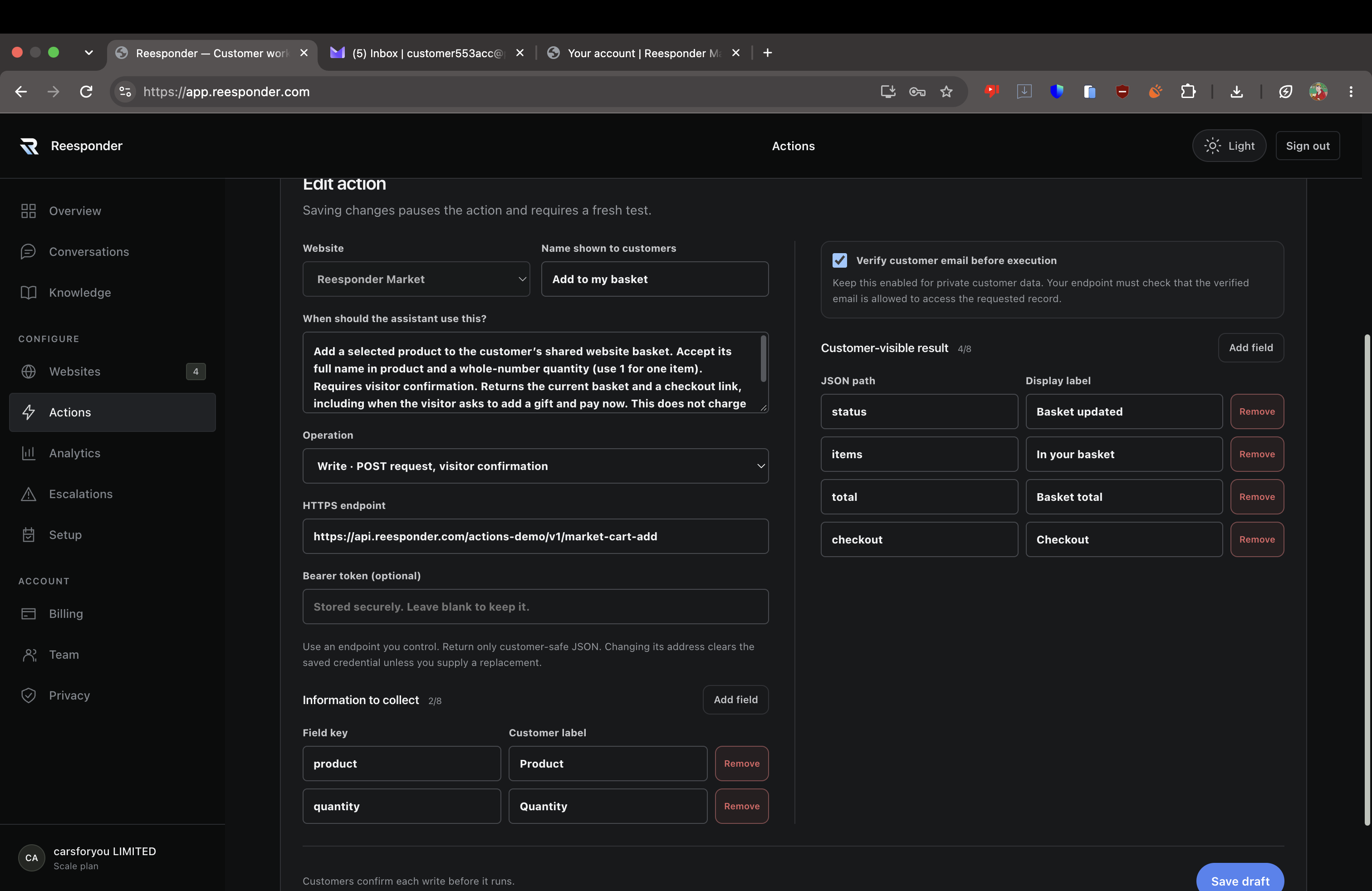
For Add to my basket, choose Write · POST request. Define product and quantity as the information to collect. The assistant can fill these from the conversation and ask for anything missing.

Require verification because the basket belongs to an account. Map the response to show its status, items, total and checkout link. Your endpoint handles the update; Reesponder handles the conversation, confirmation and presentation of the result.

For a booking, collect the quote reference, duration, total and saved payment-method reference. Let the booking system validate and execute the confirmed request. Keep card processing inside your payment system.

The basket Action collects product and quantity and maps a checkout-ready response.

Try it as your customer would.

Open the website and ask an ordinary question. Complete verification if prompted, inspect the response and confirm a change after reviewing its inputs. Follow the returned link and check the result in the connected account.

Use Activity & requests to review execution activity. Distinguish an enabled configuration, a customer’s proposed change and a completed request. Check the corresponding record in your system too.

Read Actions are available on Business and Scale. Write Actions are available on Scale.

Seven enabled Actions cover recommendations, delivery, gifts, baskets and bookings.

For your implementation team

Your operations.
A defined connection.

Actions works through HTTPS endpoints you control. Each operation has a clear purpose, defined inputs and a customer-visible result.

Keep business logic in your system.

Your API decides which records the customer can access, whether a product is available, what delivery costs and whether a quote is valid. A booking endpoint owns the reservation and payment workflow.

Read requests send inputs as query parameters. For protected reads, Reesponder supplies the verified email. Write requests contain the collected inputs, verified customer context and an idempotency key, allowing your endpoint to recognise a repeated submission.

Return concise JSON and map the fields customers should receive. References and destination links make the result useful beyond the conversation. Keep credentials and internal-only fields out of the response.

Example basket response JSON
{
  "status": "Basket updated",
  "items": "EA SPORTS FC 26 · quantity 1",
  "total": "$65.98",
  "checkout": "https://your-store.com/checkout"
}

Map these fields to the labels shown in the Action result card.

The seven configurations behind the walkthrough.

Choose an Action to read its complete JSON here. Copy the configuration, replace the walkthrough endpoint with your own service, then save it as a .json file for Import HTTP template. Add the endpoint’s bearer credential in the panel.

ActionOperationInformation usedTemplate
Find my next purchaseReadVerified account; recent orders and gift creditView JSON
Check my price and deliveryReadProduct and verified delivery addressView JSON
Find a birthday giftReadCustomer’s budgetView JSON
Add to my basketWriteProduct, quantity and verified accountView JSON
View my basketReadVerified account and current basketView JSON
Find dog care near meReadNumber of days and verified addressView JSON
Book and pay for dog careWriteQuote, days, total and saved payment methodView JSON
Find my next purchase01-market-recommend.json
{
  "name": "Find my next purchase",
  "description": "Use when the customer asks what to buy next, mentions a gift card, or wants recommendations based on recent purchases. Reads their actual last 30 days of orders, gift credit and three compatible products. No input needed; verified account identifies the customer.",
  "mode": "read",
  "provider": "http",
  "config": {
    "endpoint": "https://api.reesponder.com/actions-demo/v1/market-recommend",
    "identityRequired": true,
    "requestType": "support",
    "fields": [],
    "outputs": [
      {
        "path": "history",
        "label": "Your recent purchase"
      },
      {
        "path": "credit",
        "label": "Your gift balance"
      },
      {
        "path": "first",
        "label": "Option 1"
      },
      {
        "path": "second",
        "label": "Option 2"
      },
      {
        "path": "third",
        "label": "Option 3"
      }
    ]
  }
}

Before you connect.

Practical answers for the team building the integration.

Do customers need to know which Action to choose?

No. Describe its intent in the configuration. Customers ask in ordinary language; Reesponder selects from the available Actions and collects missing inputs. The walkthroughs start with shopping and booking requests, not operation names.

Does knowledge give access to customer accounts?

No. Knowledge supplies content for answers. Private account data comes through a configured Action and its endpoint. Enable verification and enforce account ownership in your API.

Can an Action take a payment?

A confirmed write can call your commerce or booking endpoint, which processes the payment through your existing payment integration and returns the outcome. Your system must authorise the customer, validate the amount and handle the transaction. Use a saved payment-method reference or send the customer to checkout.

Can I connect a CRM or booking system?

Yes, when you can expose the operation through an appropriate HTTPS endpoint. Your developer connects the service, applies its access rules and returns a focused response. Define separate Actions for distinct tasks.

What happens when I change a configuration?

Saving changes pauses the Action and requires a fresh test. Review the result, then enable the updated configuration. Check changed endpoints, inputs and output mappings before customers use them.

What should my first Action do?

Start with a frequent, specific need: order status, a delivery quote or a booking lookup. Once the read path works well, add a confirmed write such as a basket update or service request. Verify the chat result and the corresponding system record.

Give the conversation
somewhere to go.

Start with the task your customers ask for most.
Connect it once. Make it part of the experience.