Skip to the setup guide

From first sign-in
to first conversation.

Connect the website you already have. Set up your workspace, bring in your content and give customers a way to ask for help, right on the page.

Watch the film 2 min 39 sec

From setup to live.

Follow the setup, connect your website and start your first conversation with Reesponder.

Sound on for the full story.
Explore the setup guideClose the setup guide

Your website.
The right installation route.

The same Reesponder workspace, with setup instructions for the platform you use.

Choose your plan

Start with the workspace
your team needs.

Review the current plans and billing period, then complete checkout using the email you want associated with your account.

Choose your plan. Use the email you want to sign in with.

Start on Pricing, select monthly or yearly billing and choose a plan. Complete Stripe Checkout with an email you can access: your activation link will arrive there.

Compare the plans on the current Pricing page, including your expected conversation volume and the features your team needs. Choose the billing period before continuing. The checkout is the place to review the amount and payment details before you pay.
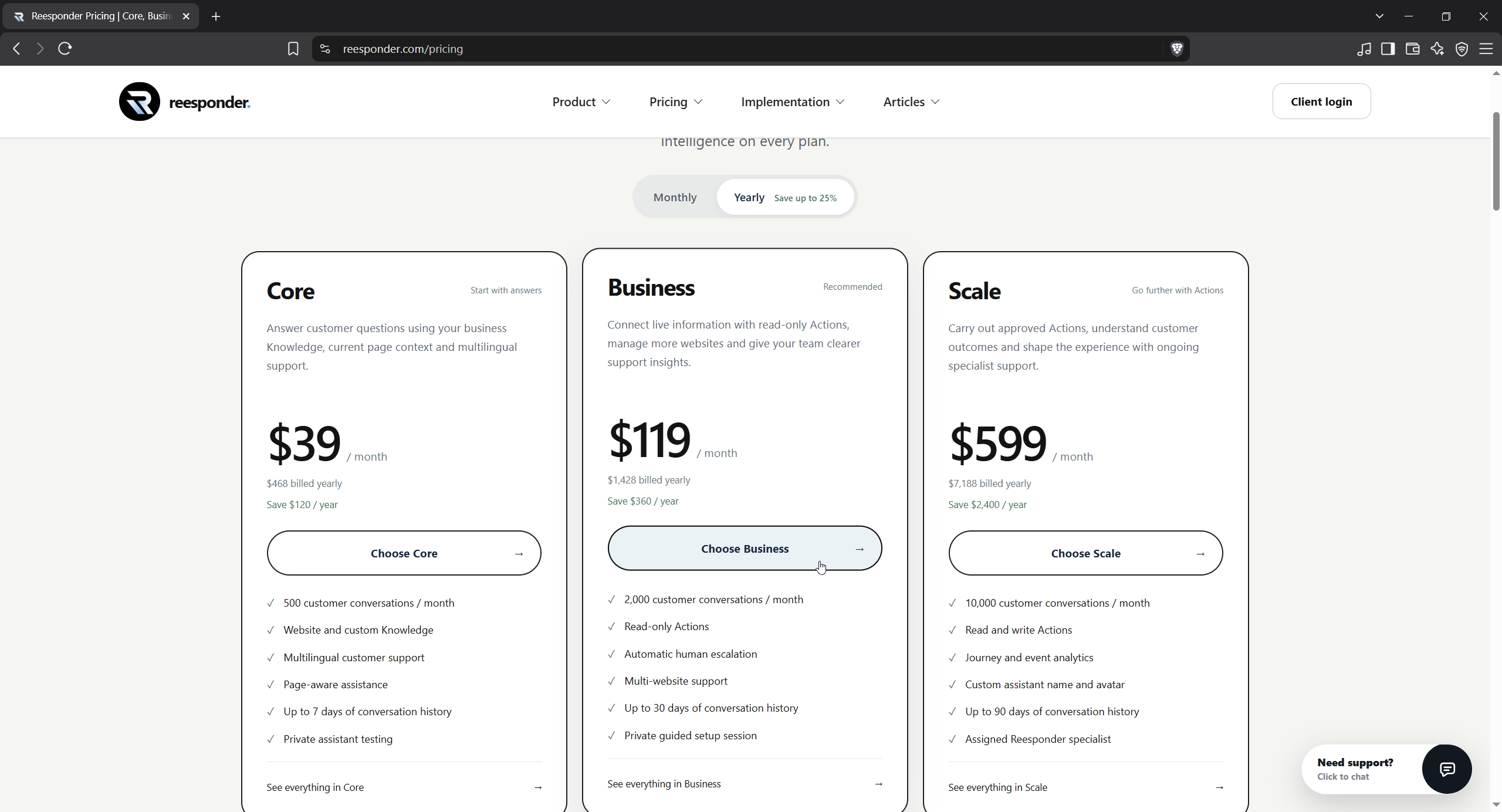
Choose the plan and billing period for your business.
Choose the plan and billing period for your business. View full size

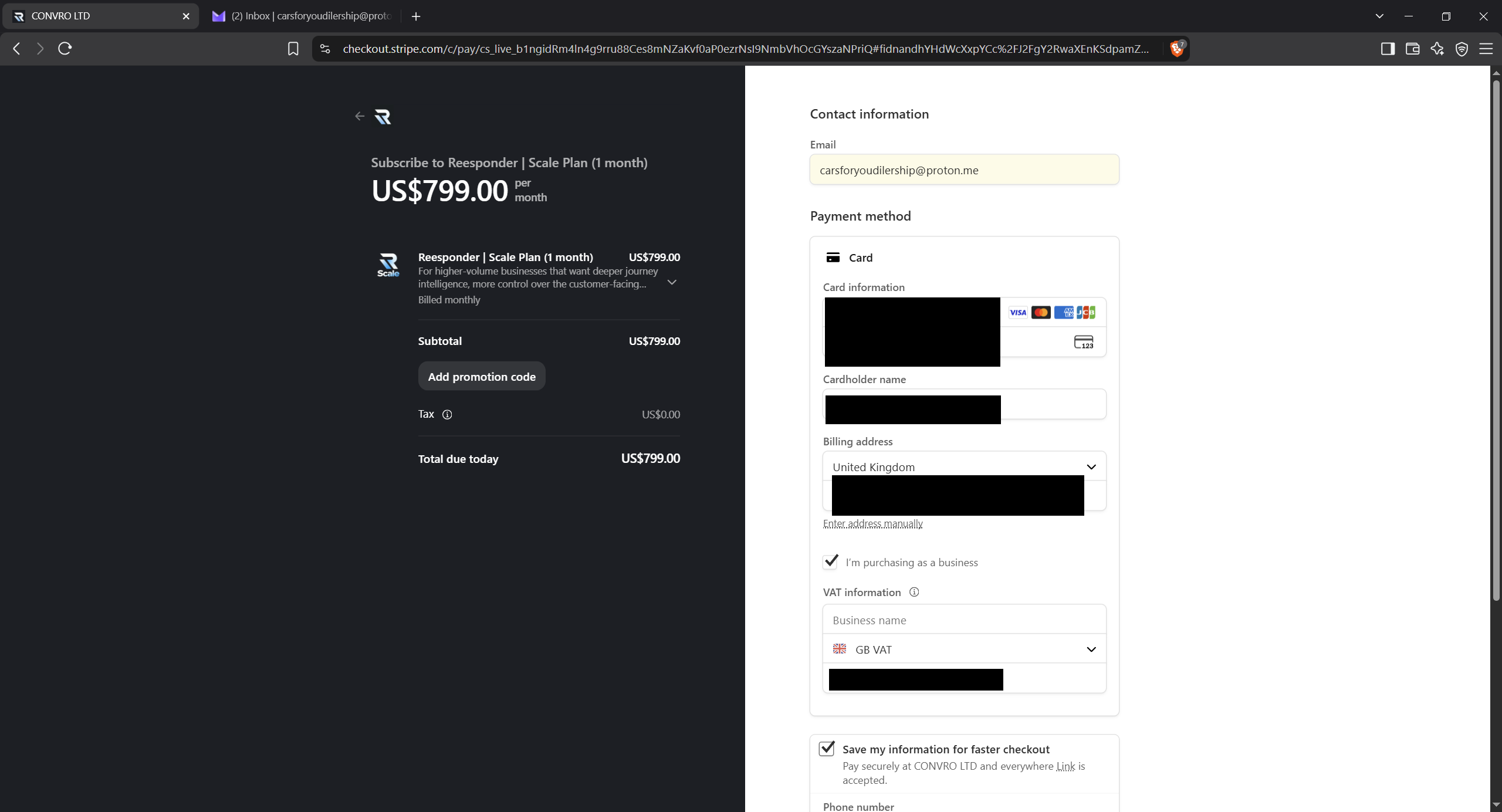
Enter your contact email and complete the payment in Stripe.

Use the email you want associated with your workspace. Your activation message will be sent to this address after payment is confirmed.

Use an inbox you can access now: this is where the workspace activation message will arrive. Complete the payment in the Stripe checkout, then check that inbox. Returning from checkout by itself is not the activation step.

Enter your contact email and complete the payment in Stripe.
Enter your contact email and complete the payment in Stripe. View full size
Activate your account

A workspace.
Ready to make your own.

The activation email connects your confirmed purchase to account setup. Add your business details, create your password and sign in.

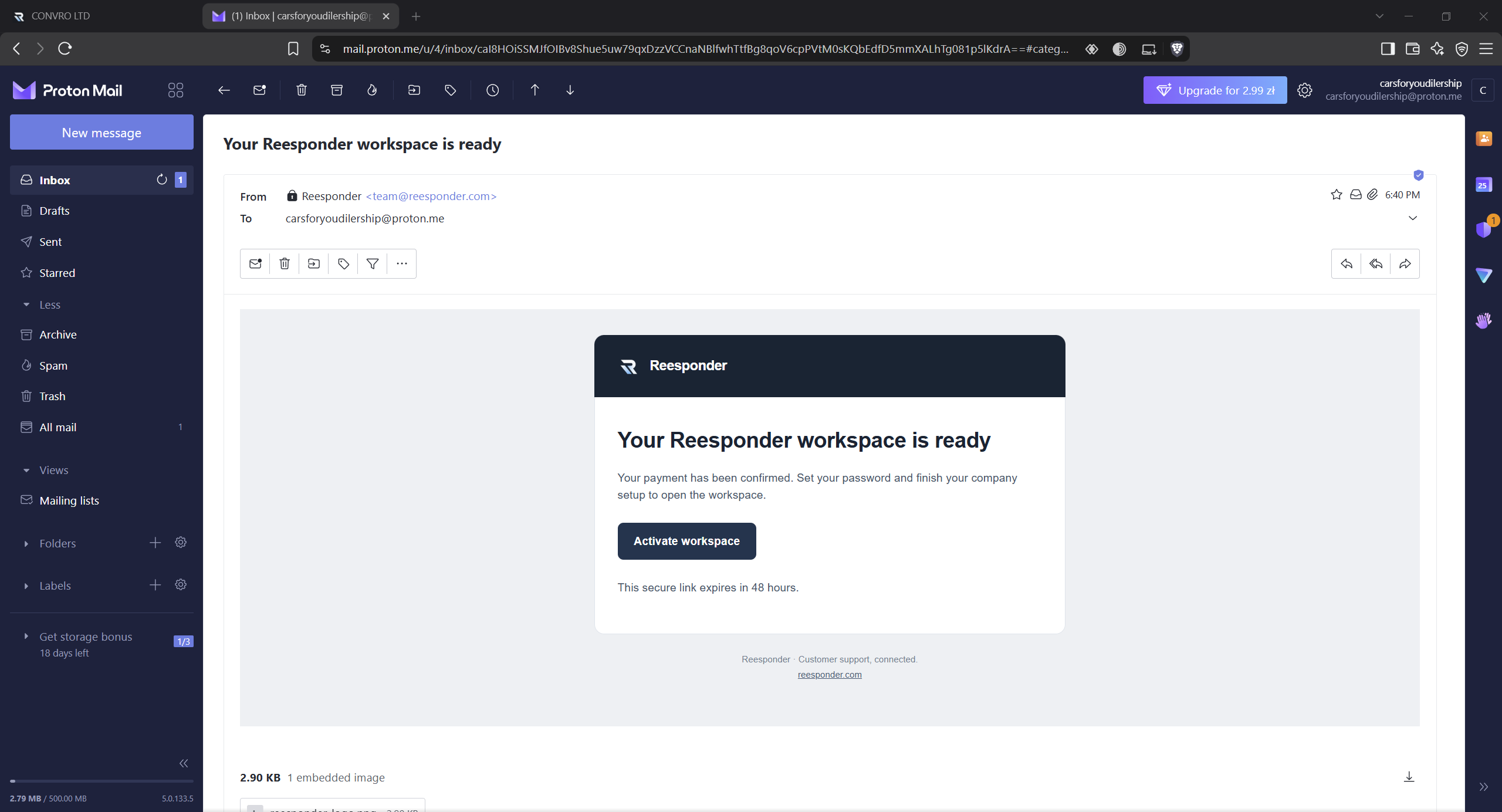
Open your email and activate your workspace.

After payment is confirmed, Reesponder sends your activation email. Open the link, set your password and tell us a little about your business.

Look for the message titled “Your Reesponder workspace is ready” and use its activation link. If it has not appeared, check the spam folder and make sure you are looking in the inbox used at checkout. The secure activation link is valid for 48 hours.

Click Activate workspace in the email sent to your checkout address.
Click Activate workspace in the email sent to your checkout address. View full size

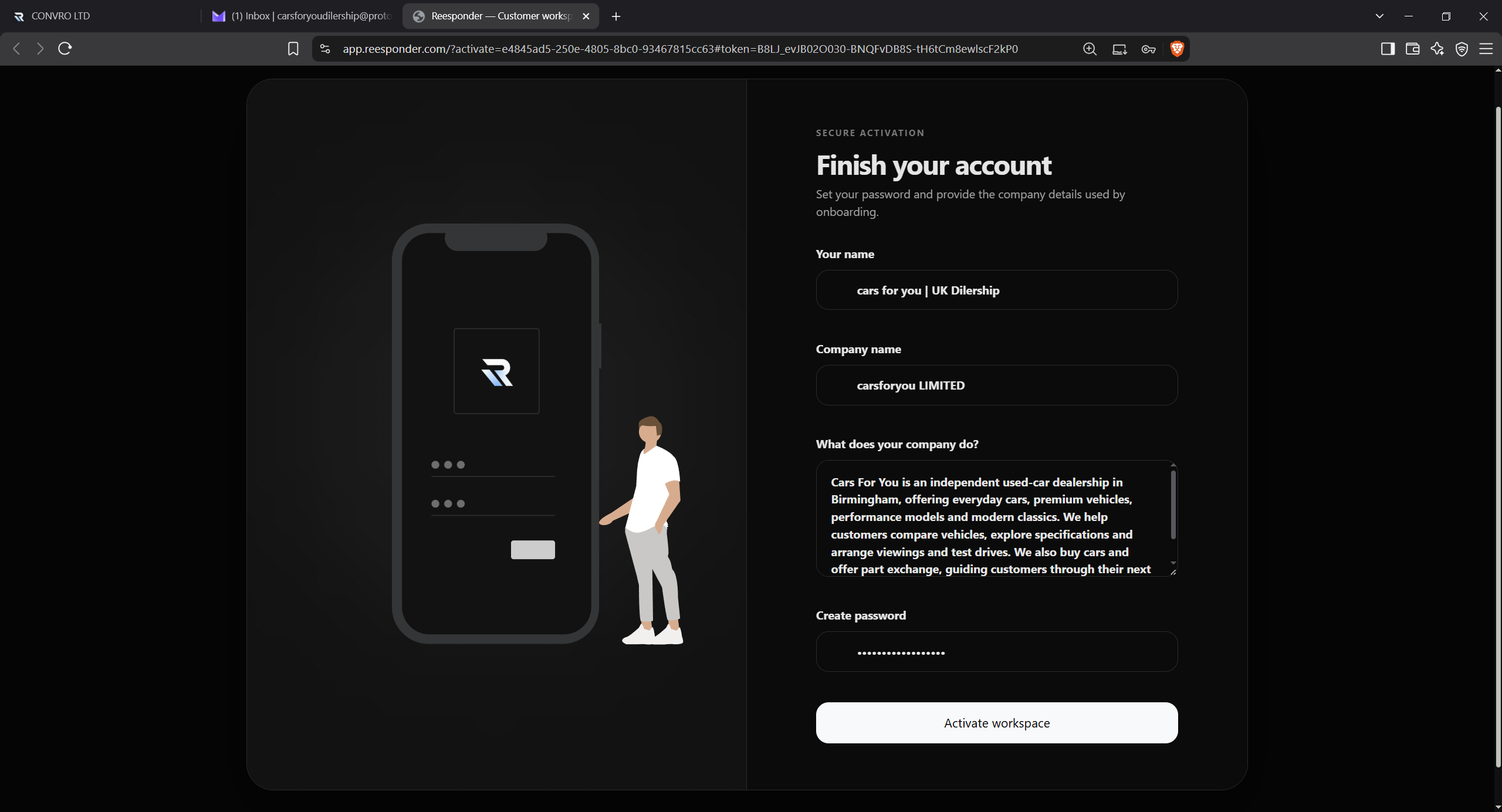
Add your company details, describe the business and set your password.

Use your own company name and business description. These details help establish the context for your assistant.

Use a clear business description: what you offer, who you help and the kind of questions visitors ask. This gives your workspace useful context. Your website content and the Knowledge you add later provide the detailed information used in answers.

Add your company details, describe the business and set your password.
Add your company details, describe the business and set your password. View full size

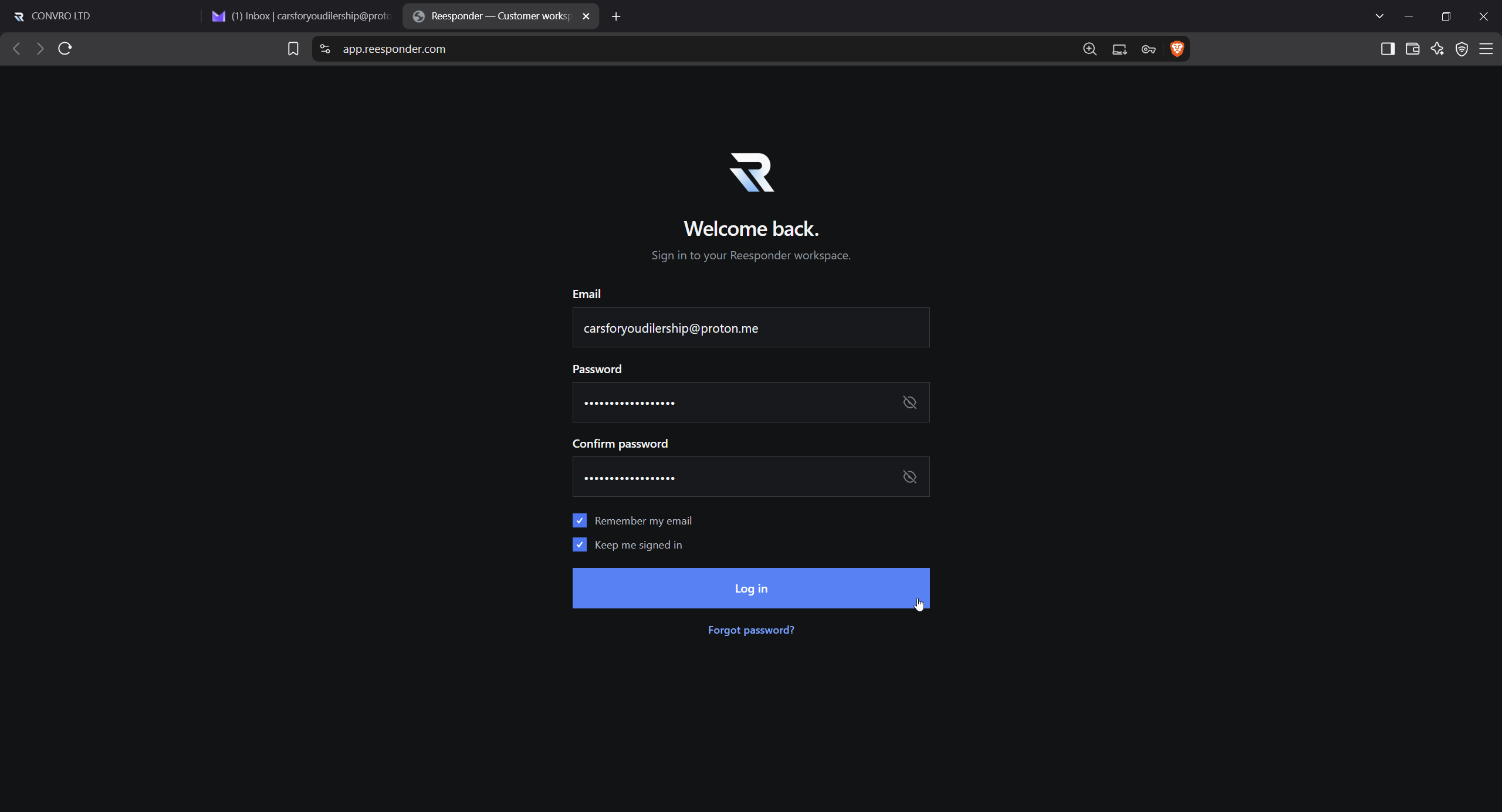
Sign in to your new workspace.

Use the same email and your new password at app.reesponder.com. Your overview is the starting point for connecting your first website.

Use the email associated with the purchase and the password you just created. Keep these account credentials separate from the installation code: your password is for signing in to the panel, never for pasting into a website.

Sign in with the email used at checkout.
Sign in with the email used at checkout. View full size

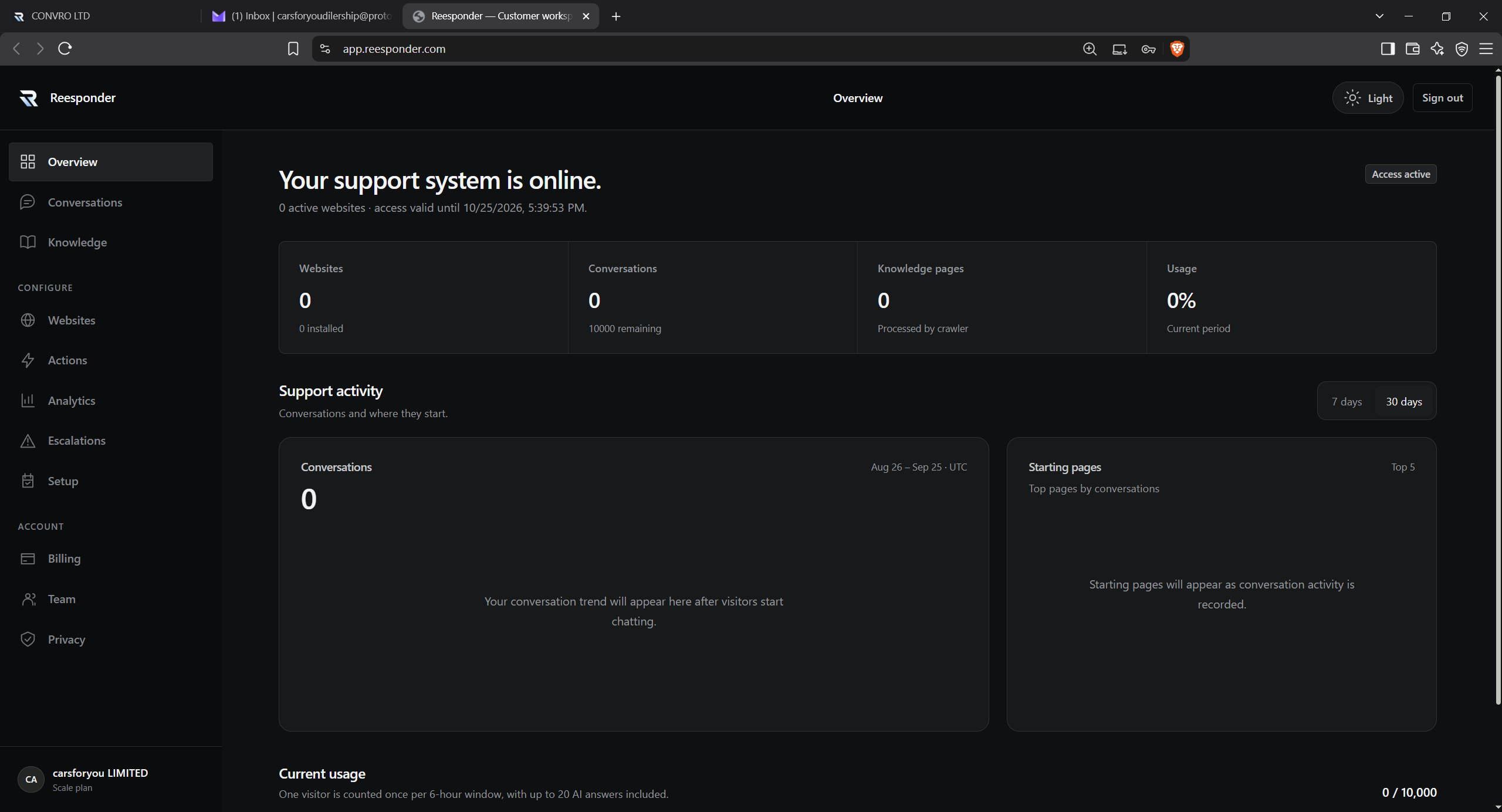
Your workspace is ready. Open Websites to begin.

From the overview, choose Websites in the sidebar. This is where you connect the domain your customers visit.

The Overview brings your websites, conversations and usage together. A new workspace can start with no website installed and no conversations recorded. Open Websites to connect the first domain.

Your workspace is ready. Open Websites to begin.
Your workspace is ready. Open Websites to begin. View full size
Connect your website

Your website.
Your assistant’s starting point.

Connect the public domain your customers visit. Review what Reesponder can read, then prepare the installation for that website.

Add your domain. Let Reesponder read your website.

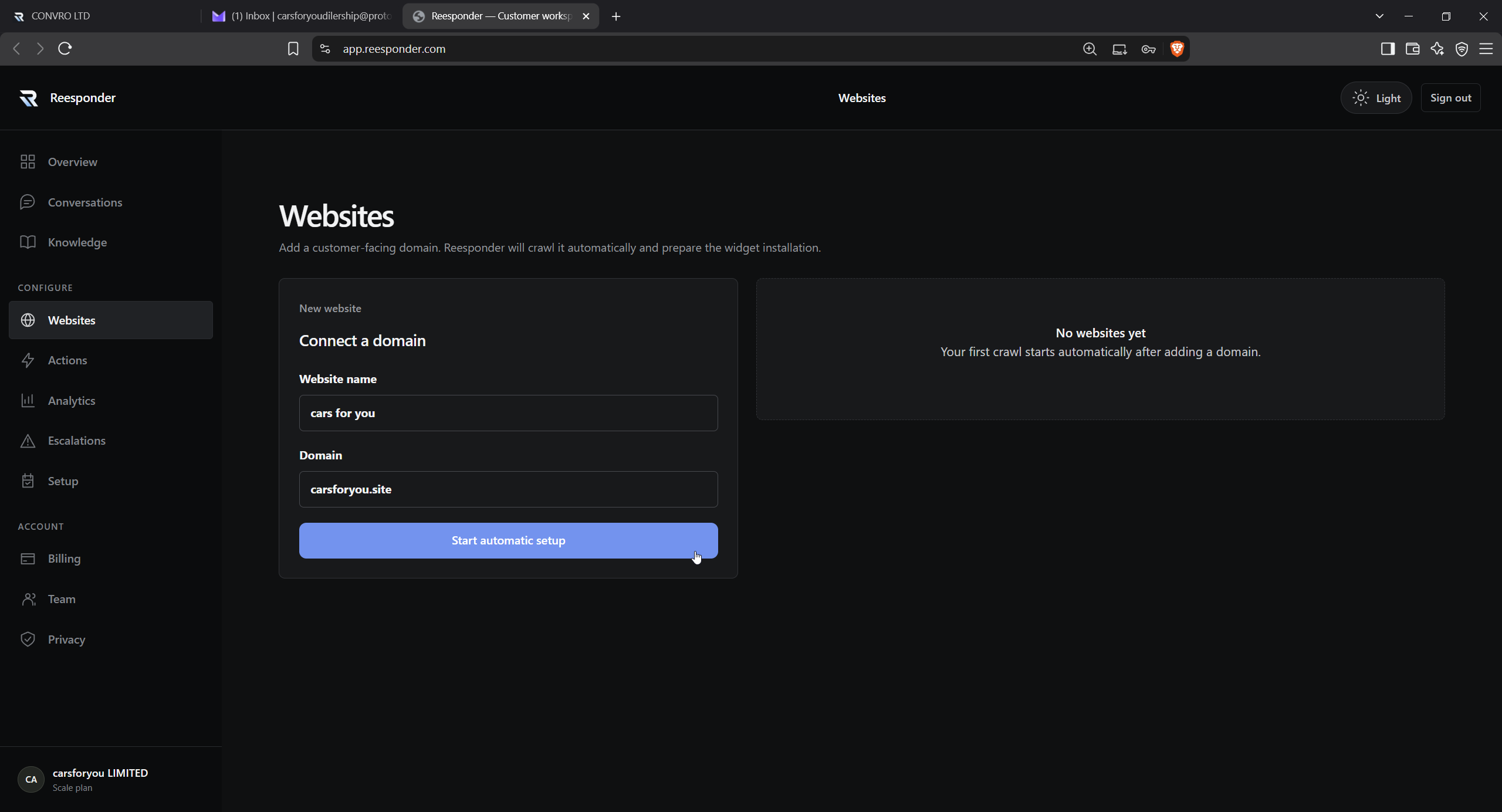
In Websites, enter a name and your public domain, then click Start automatic setup. Reesponder reads the pages it can access and adds them to your website knowledge.

Enter the public address people actually visit, not your hosting control panel or an administration URL. Automatic setup starts reading accessible website content. It also checks the platform so the Installation tab can present an appropriate route.

Enter the public website address and start automatic setup.
Enter the public website address and start automatic setup. View full size

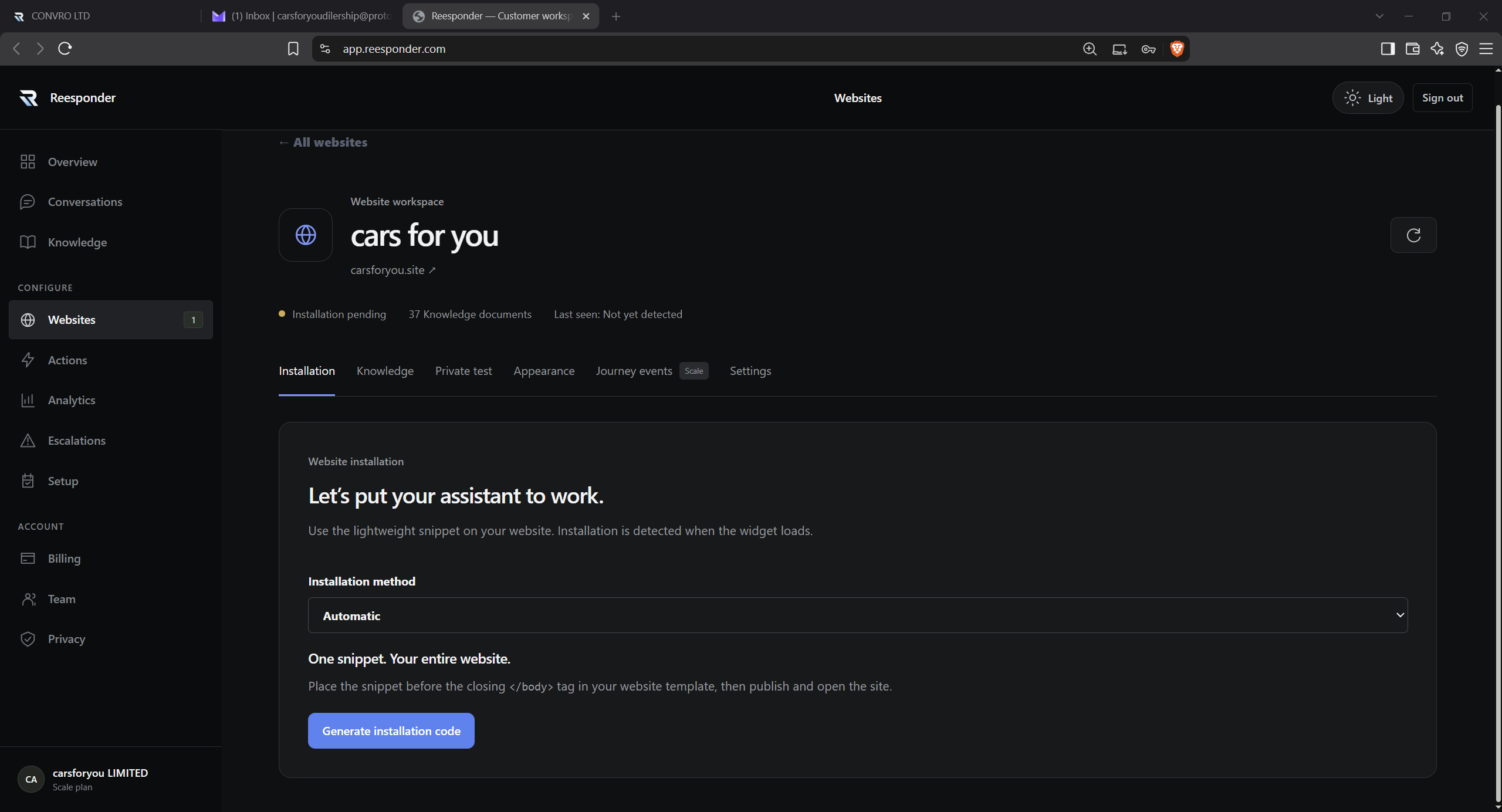
Open the website to review its knowledge and installation options.

The website workspace brings its knowledge and installation controls together. Check the crawl result before moving on.

Knowledge and installation are separate parts of setup. Review the content collected for this website, then use Installation to put the widget on the page. A successful crawl alone does not mean the chat is installed.

Open the website to review its knowledge and installation options.
Open the website to review its knowledge and installation options. View full size
Install the widget

One shared layout.
A chat across your website.

Use the complete code generated for your domain. A shared layout puts the assistant on the pages your customers already browse.

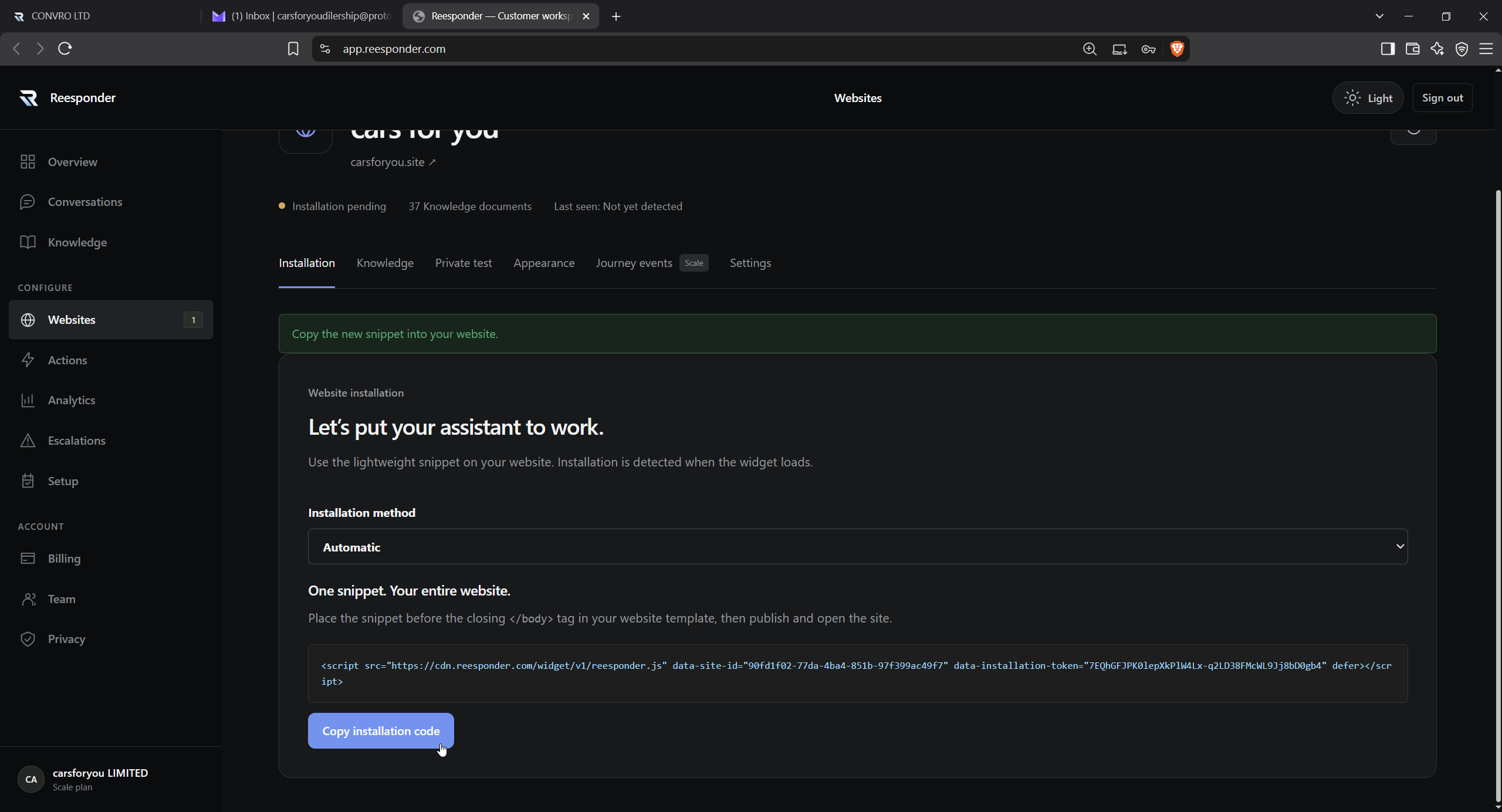
Copy the code generated for your website.

Click Generate installation code in the website’s Installation tab. Copy the complete snippet, keeping its values unchanged.

Copy the complete code generated for this website. Its installation values belong to that domain. For Shopify or WordPress, use the dedicated guide below instead of trying to adapt a different website’s snippet.

Use the snippet from your own workspace for the domain you connected.
Use the snippet from your own workspace for the domain you connected. View full size

Paste it once, then save.

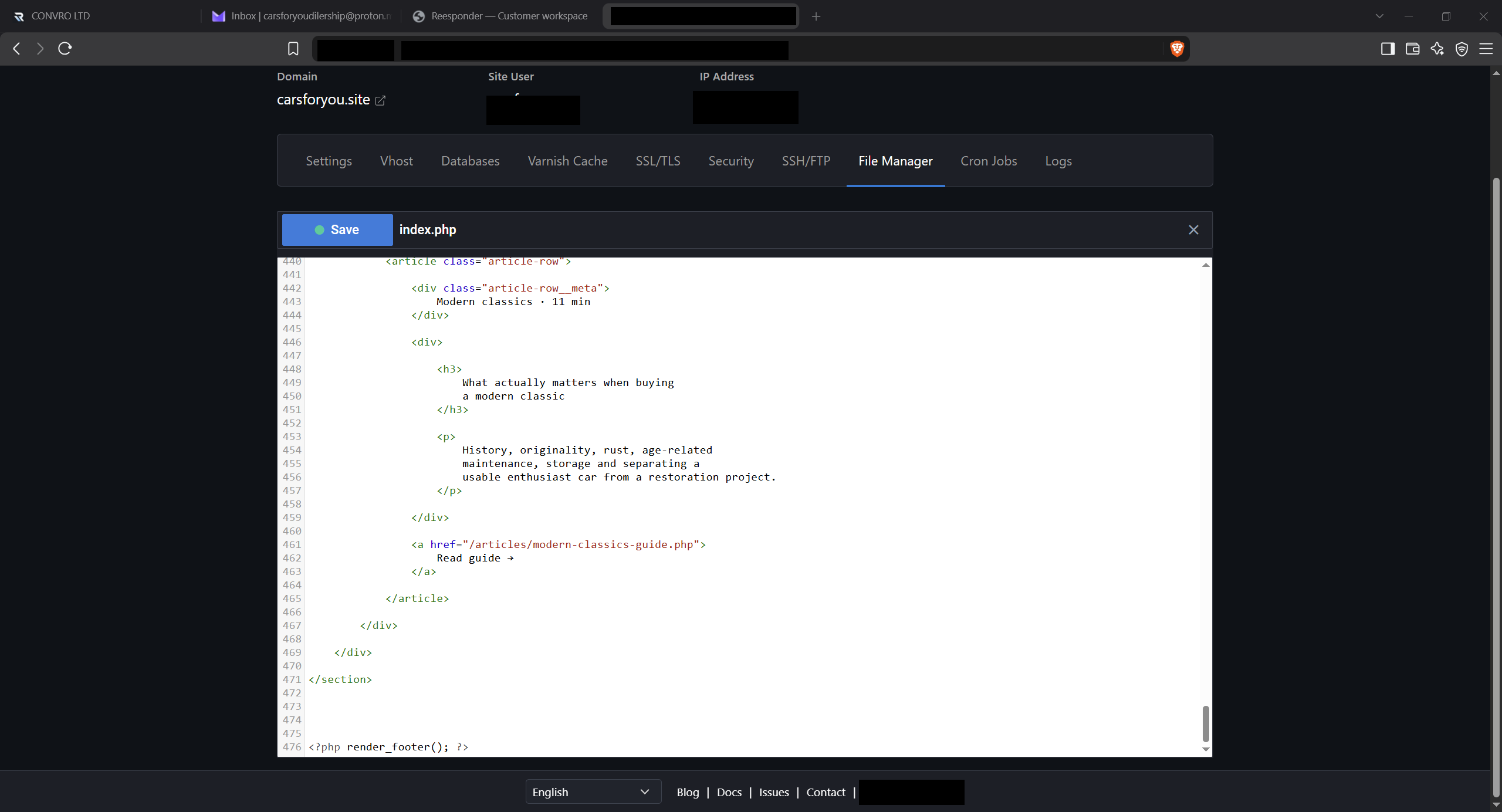
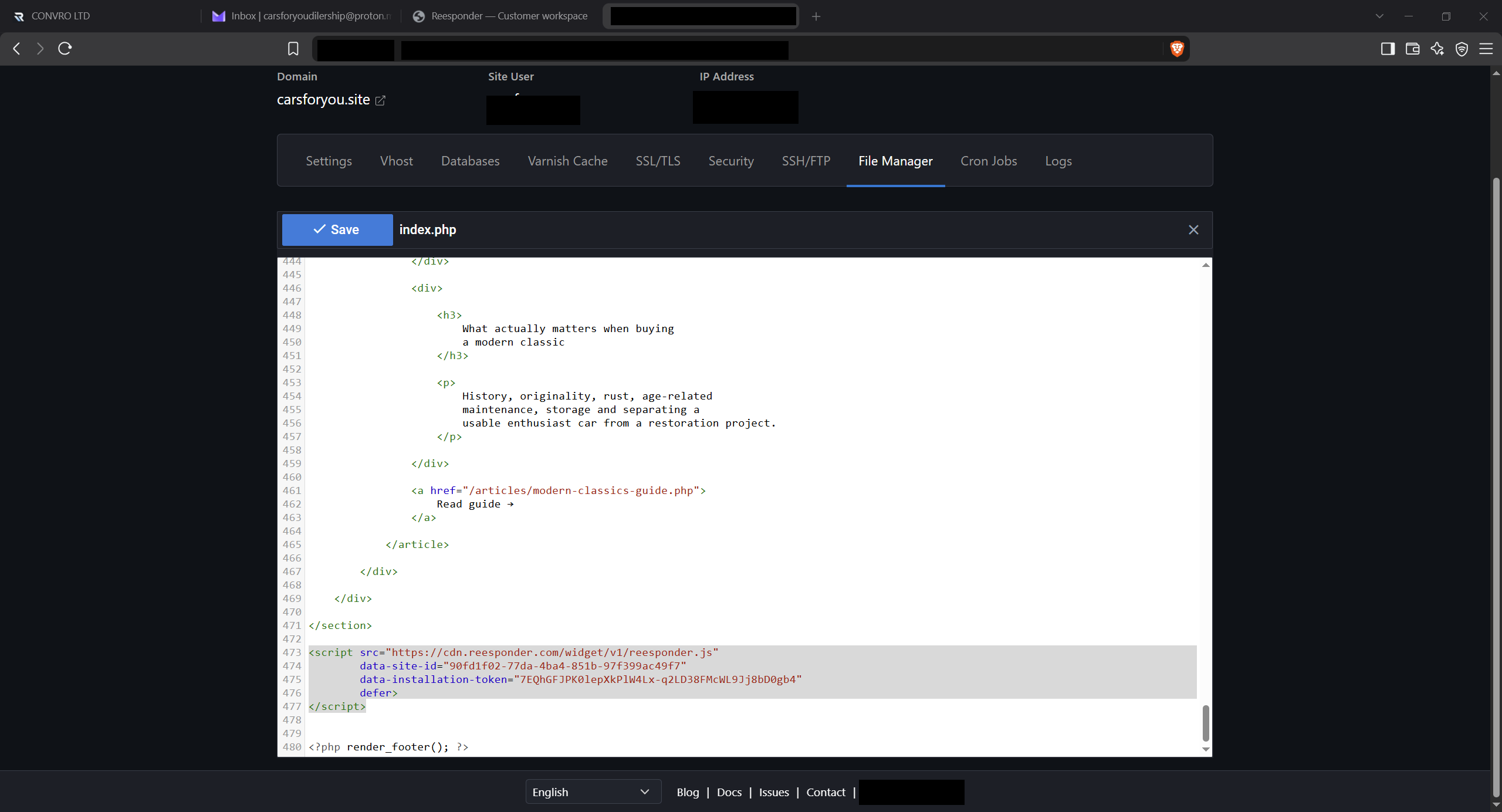
Add the snippet immediately before the closing </body> tag in your shared site layout or footer. For a PHP template, place it before the function that outputs that closing tag. Use a shared file to cover every page.

This example uses a hosting file editor. Your own editor may look different, but the placement is the same: immediately before the closing </body> tag in the shared page template. Keep the existing page markup intact.

Before: the existing template, without the widget snippet.
Before: the existing template, without the widget snippet. View full size

After: the generated snippet is in place. Save and publish the change.

Keep the complete generated snippet together and leave its values unchanged. Publish the saved template so the widget can load on the public site.

Use the layout that is included by the pages where the assistant should appear. Save and publish the change through your normal website workflow. Avoid inserting the same snippet in both a shared layout and an individual page.

After: the generated snippet is in place. Save and publish the change.
After: the generated snippet is in place. Save and publish the change. View full size

Using Shopify or WordPress? Follow the instructions for your platform.

Test the result

The first question.
On your actual website.

Open a public page, check that the widget appears and ask a question your customers would ask. Review the answer and fill any gaps in Knowledge.

Open a page. Ask a real customer question.

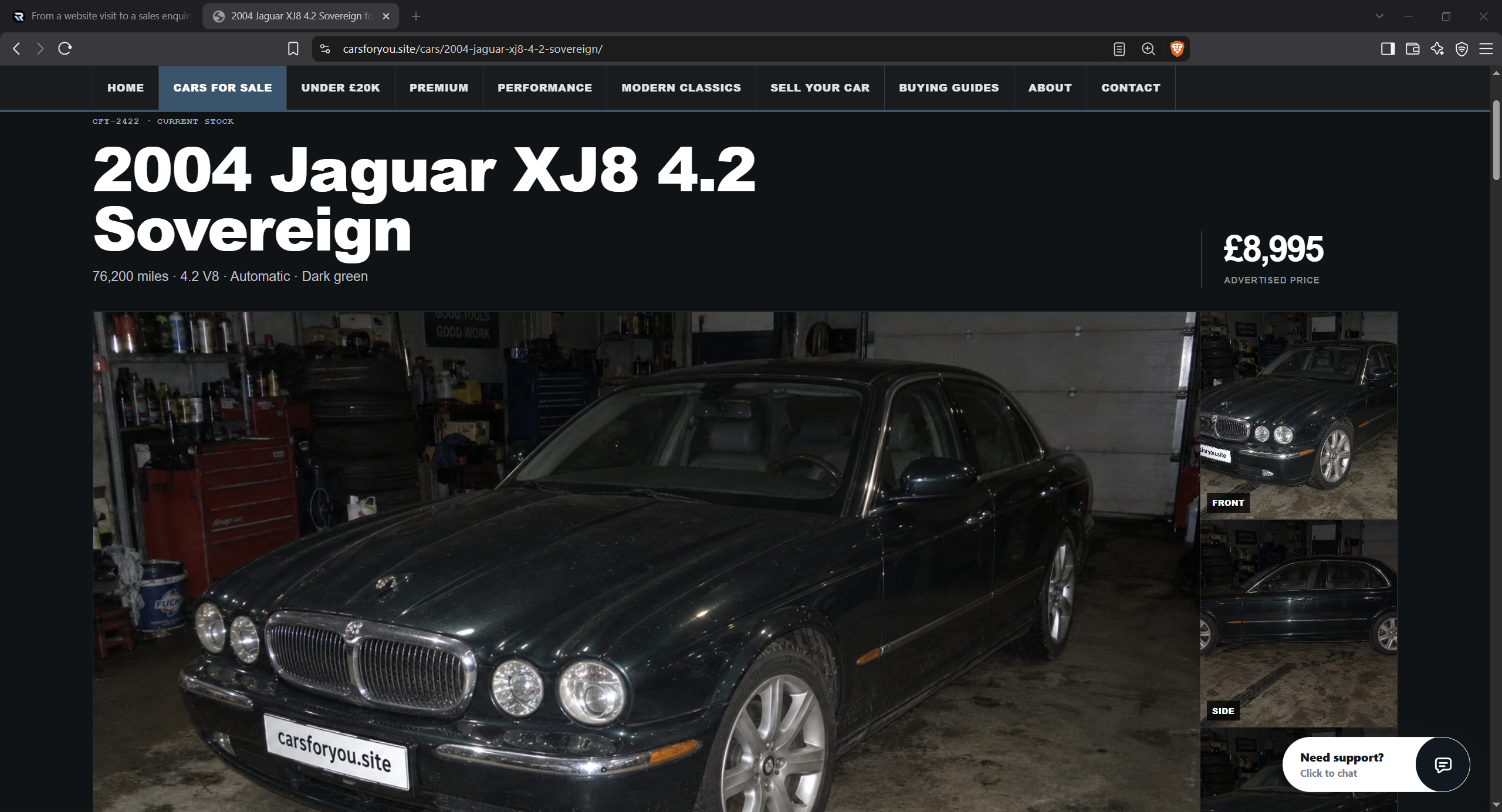
Reload your public website and look for the chat button. Open it and ask something about the page or your business. Reesponder updates the installation status when it detects the widget.

Visit the public website after publishing. If you use a page cache, clear it first. Installation is detected when the widget loads; return to the website’s Installation tab to check its status.

The chat button is available while visitors browse the website.
The chat button is available while visitors browse the website. View full size

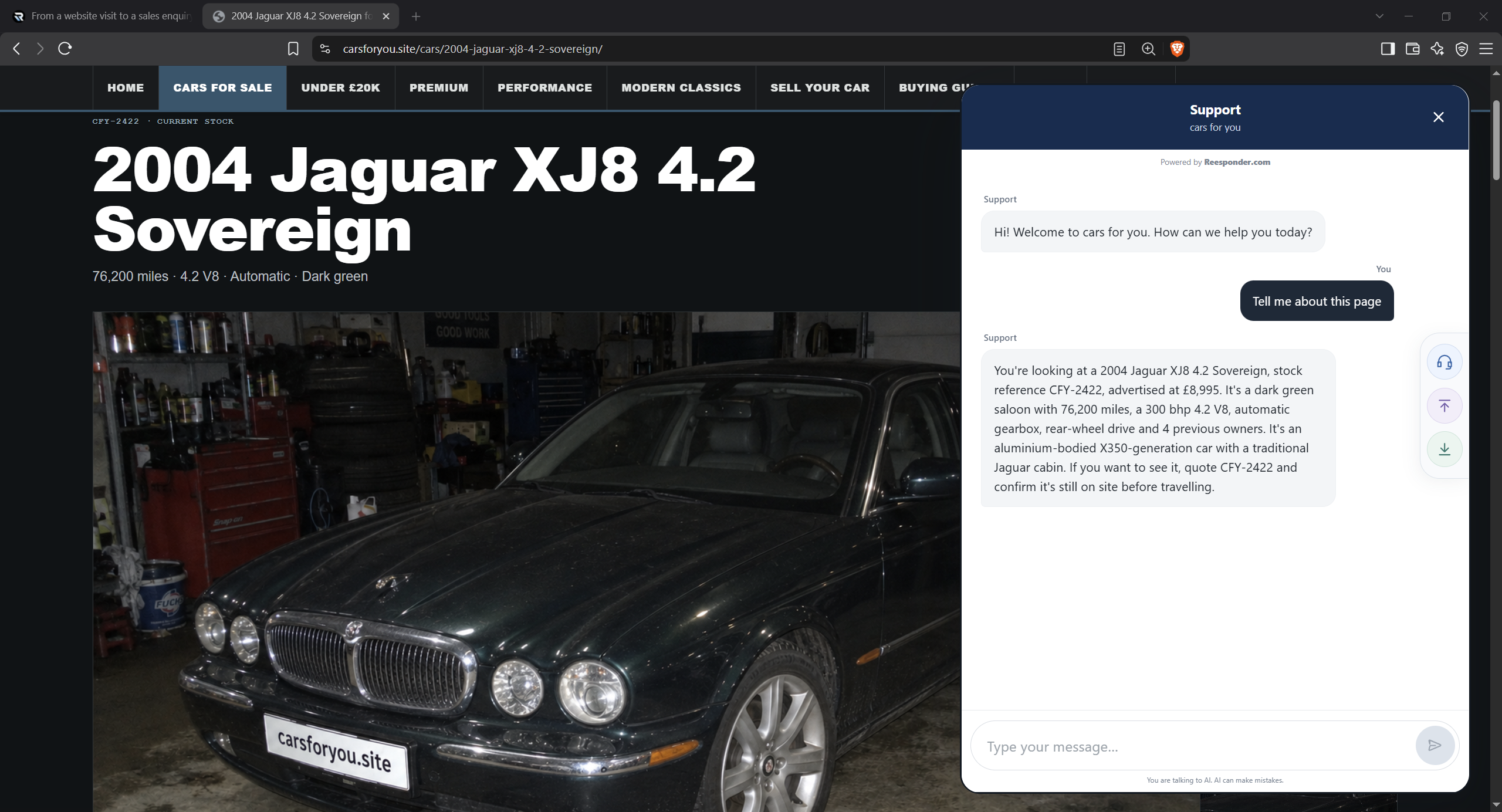
A visitor asks about the vehicle without leaving its page.

Choose a question a customer might ask about this page. Review the answer and update your website knowledge if information is missing.

Test a question a real visitor would ask about the page. Review the answer and its usefulness, then add missing business details in Knowledge. Installation gets the assistant onto the page; reviewing conversations helps you keep improving it.

A visitor asks about the vehicle without leaving its page.
A visitor asks about the vehicle without leaving its page. View full size

Installed is the beginning.

Take a few minutes to check the details that turn a visible chat into useful customer support.

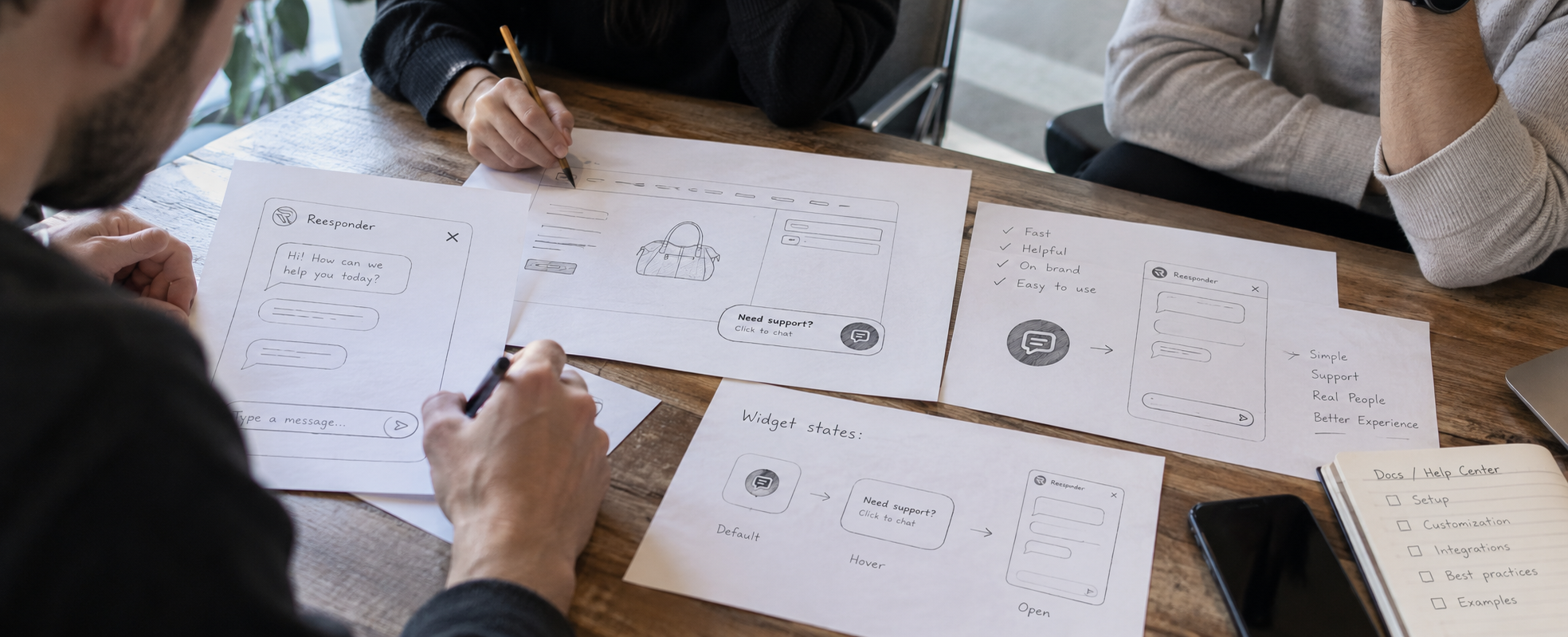
A team reviewing website layouts and Reesponder chat sketches together at a table

Review the knowledge.

Check what the assistant knows about your website. Add missing details such as delivery rules, support hours and service information in the panel. Use questions your visitors would actually ask.

Explore the workspace

Make the next step useful.

Knowledge answers questions. Actions can connect the conversation to your systems for tasks such as an order lookup, a basket update or a service request.

See Actions in practice

Keep a person within reach.

Configure human escalation for your website, then review incoming conversations. Give your team a clear route to follow up when a visitor needs help beyond the assistant.

Open your workspace

A few things worth checking.

Practical answers for the person connecting your website.

Website knowledgePages and documents.

Customer contextShared by your integration.

Your controlSources and settings.

Does automatic setup also install the widget?

Automatic setup prepares your website information for Knowledge. Complete the platform’s installation steps to add the widget, then check detection in the workspace. Test a question on your live site to confirm the full experience.

Which email should I use?

Use a business email address you can access during setup. Your activation message goes to the contact address entered at checkout, so check that inbox and its spam folder. After activation, configure the customer escalation mailbox separately where available.

Do I need to paste code on every page?

Add the snippet to a shared layout or use the WordPress plugin so it appears across the relevant pages. This gives visitors a consistent support entry point as they browse. Check the homepage and a product or service page after installation.

Why is the widget not detected yet?

Check that you installed the complete snippet on the correct domain and saved or published the change. Clear any site cache, then open the public page in a fresh browser tab. Return to Installation and run detection again.

Can I add information that is not on my website?

Yes, add documents and Business facts and guidance alongside your public website pages. Include useful details such as internal explanations, service policies or answers your team gives regularly. Test those topics privately to check how the assistant uses them.

Your website.
A conversation away.

Connect the domain, complete the installation and try the experience yourself.